Getting Started Guide
- Open VST Host.
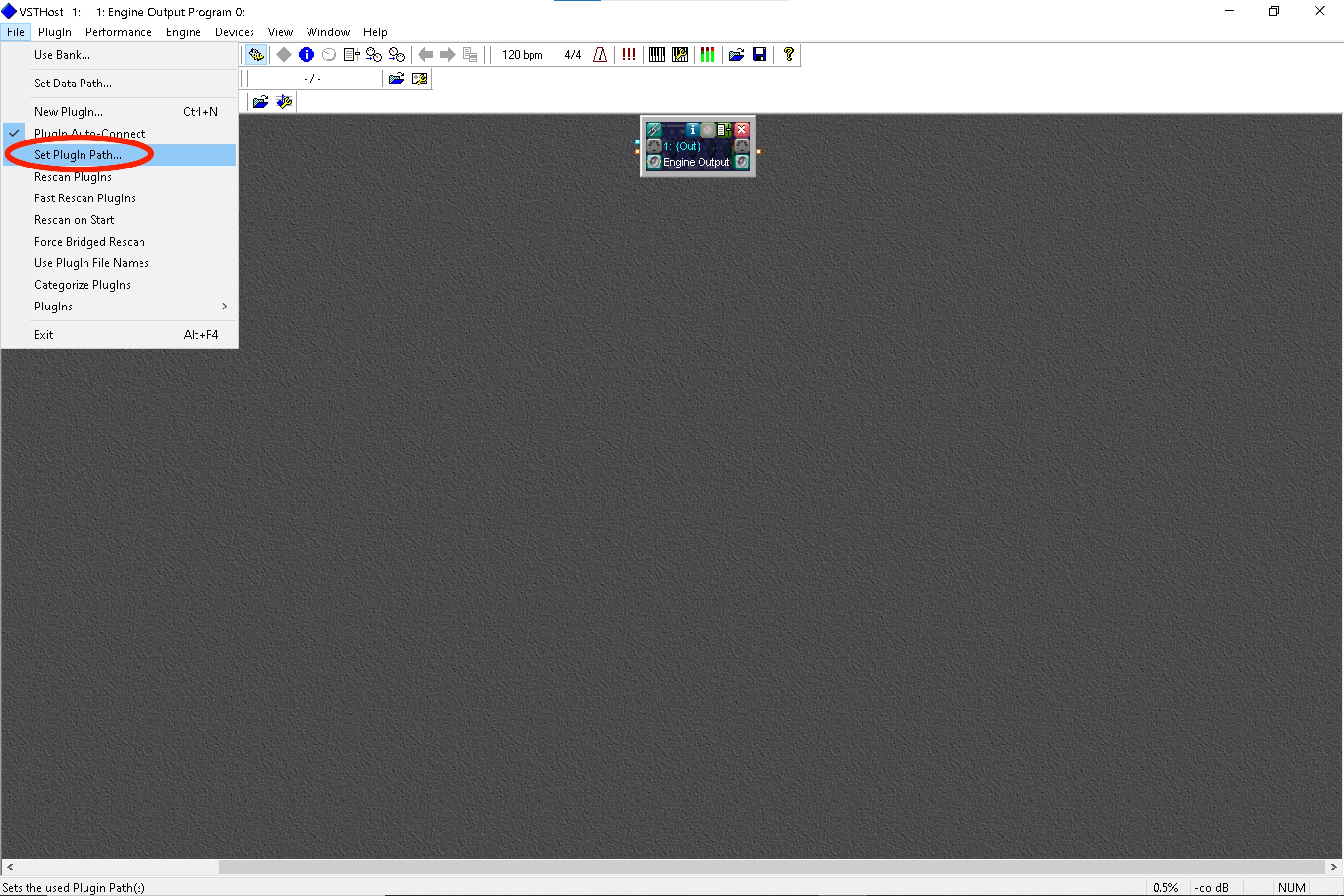
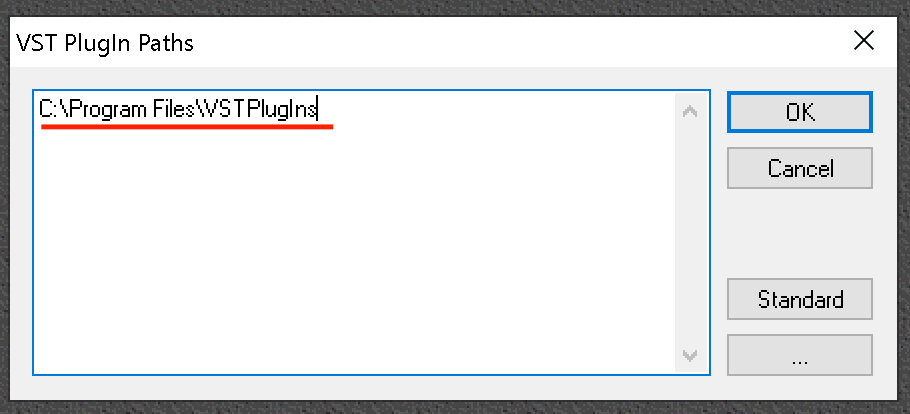
- Select "Set Plugin Path..." from the File dropdown menu, add the path you chose when installing SWAM instruments, and rescan plugins. (Picture 1 & 2)
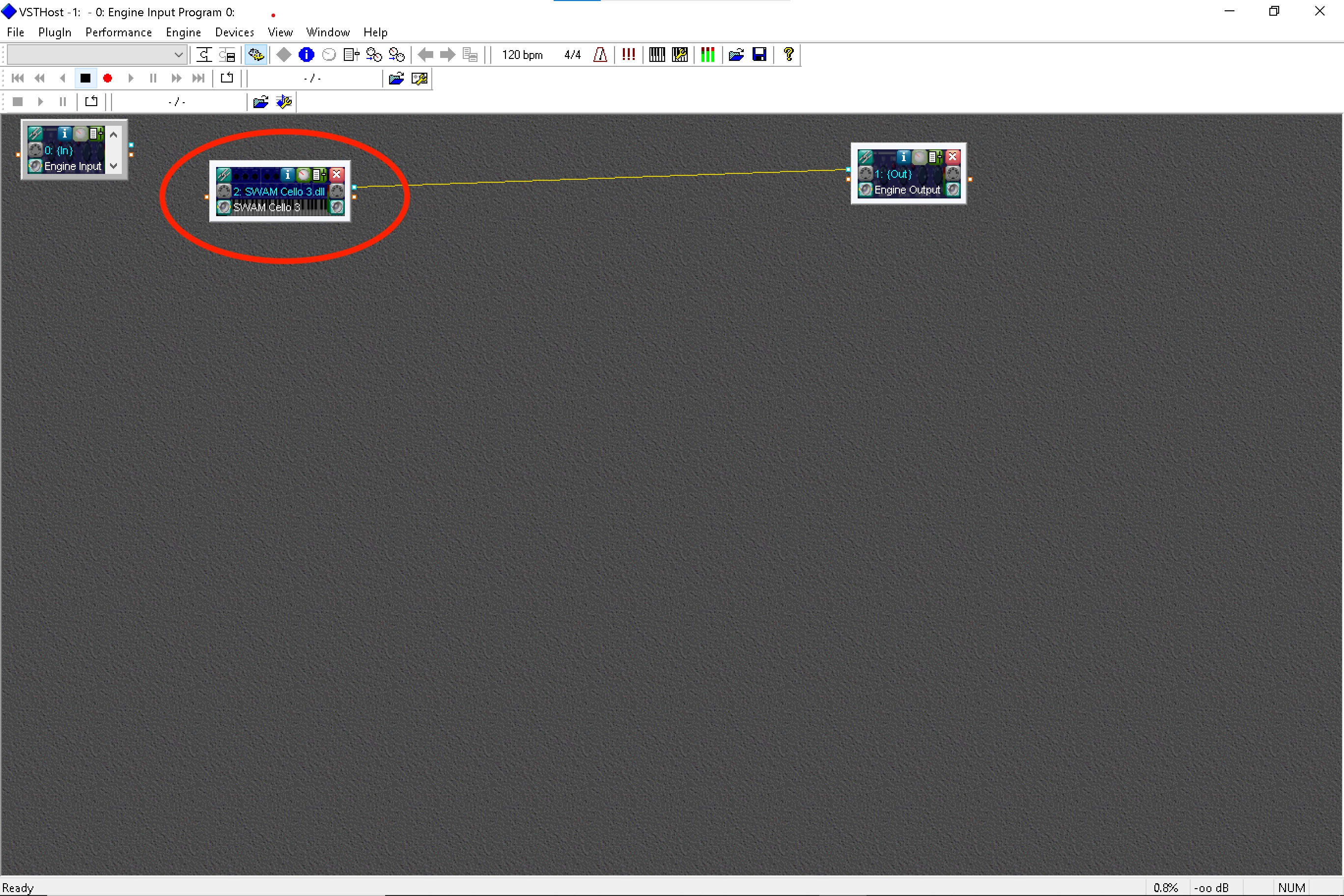
- Add a SWAM Instrument by right-clicking on the main window. Select File -> Plugins -> SWAM and select your favorite SWAM instrument. (Picture 3 & 4)
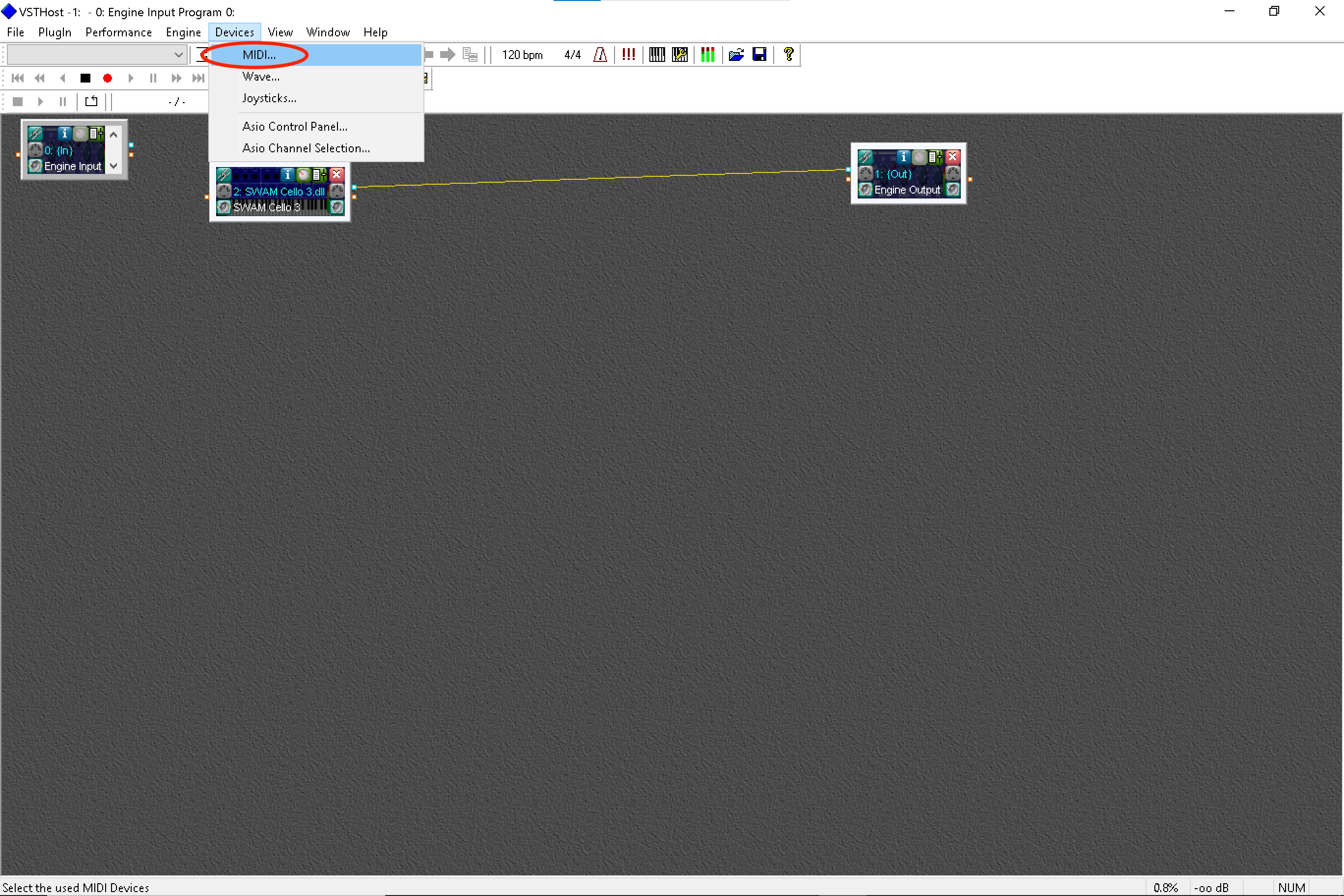
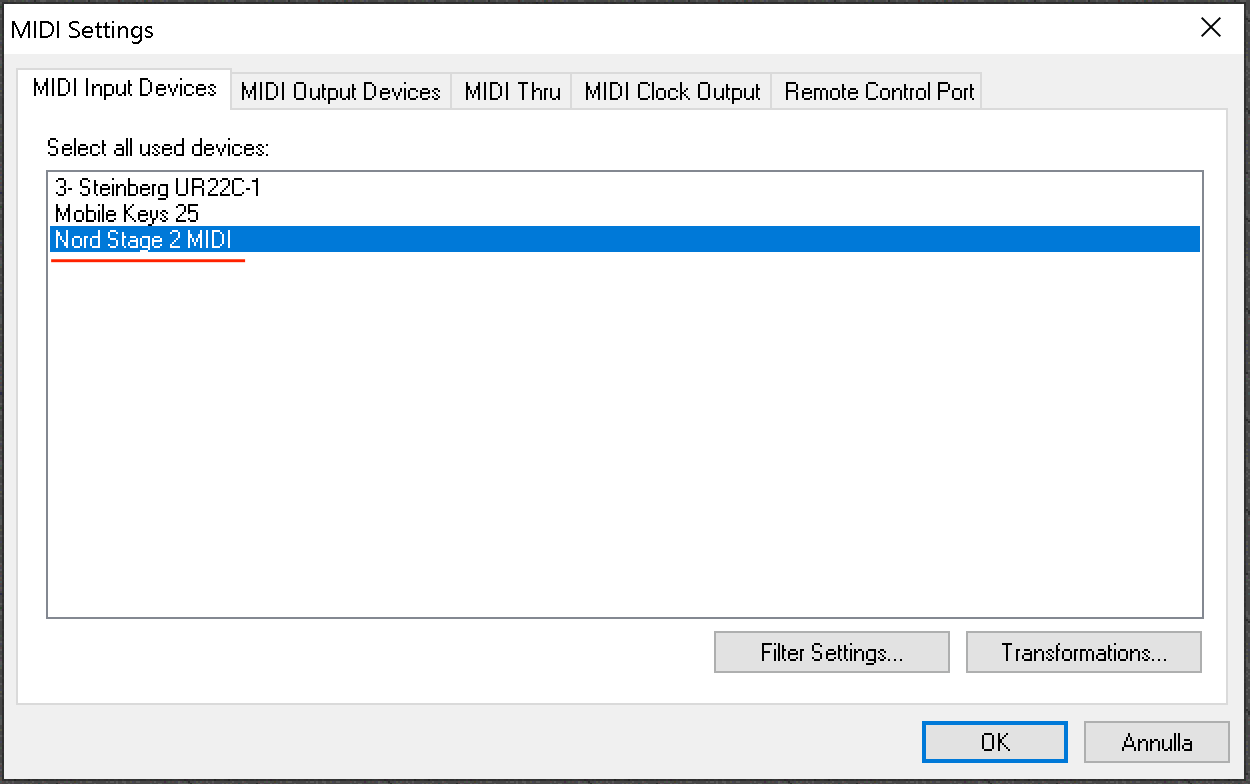
- Enable your MIDI controller by opening the Devices dropdown menu. Select "MIDI..." and enable your controller. (Picture 5 & 6)
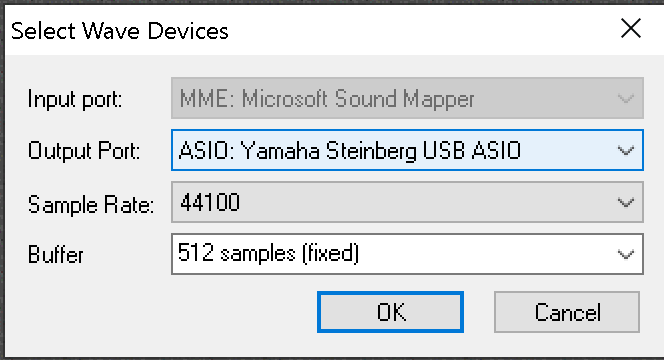
- Configure the audio output by opening the Devices dropdown menu, selecting "Wave..." and choosing your audio card as the output port. If you're using an ASIO driver, open "Asio Control Panel..." and "Asio Channel Selection..." to configure it. (Picture 7 & 8)
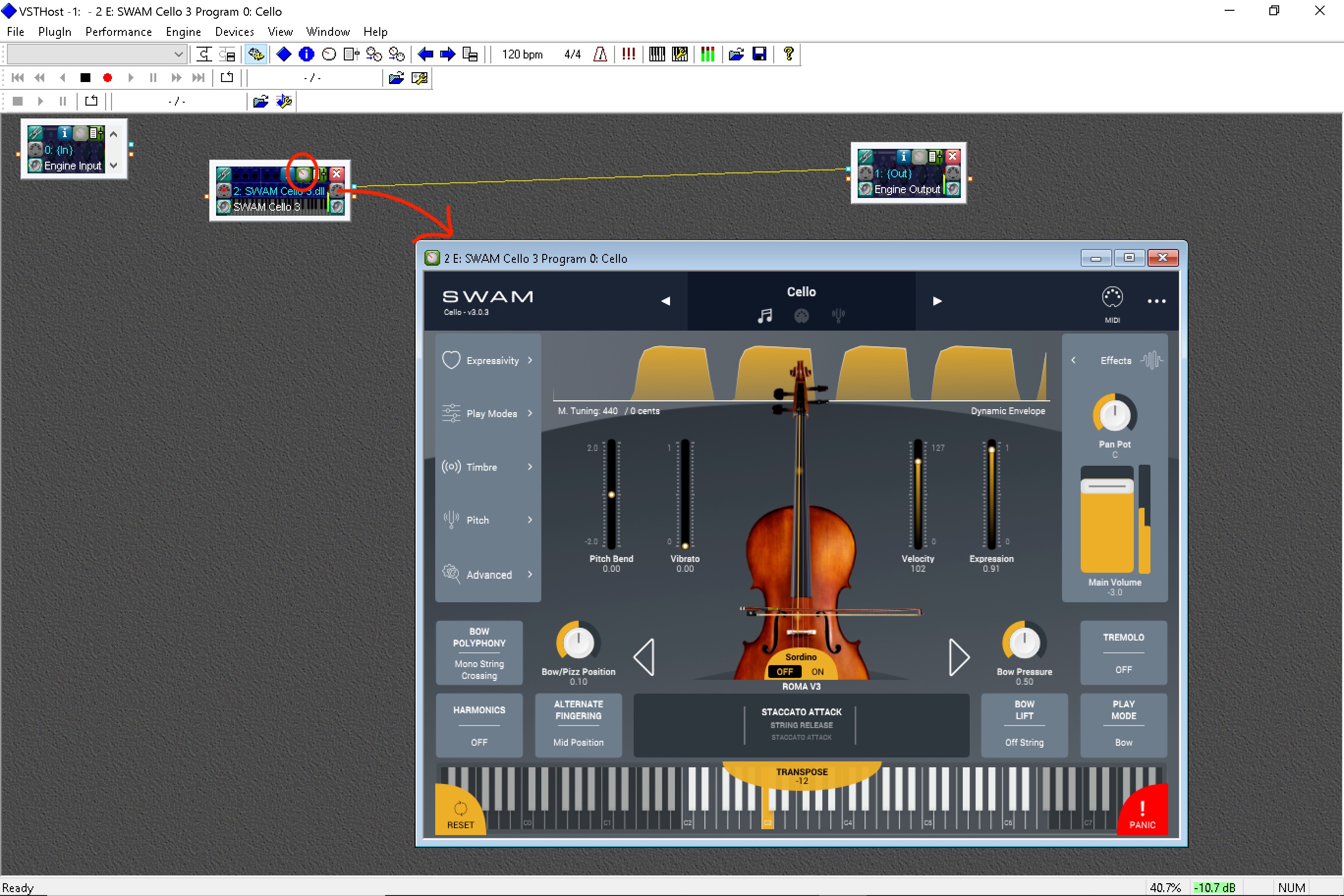
- If you need to see the plug-in's interface, click on the knob icon of your instrument. (Picture 9)
Picture 1 — Select "Set Plugin Path"
Picture 2 — Add the path you chose when installing SWAM instruments
Picture 3 — Select your favorite SWAM instrument
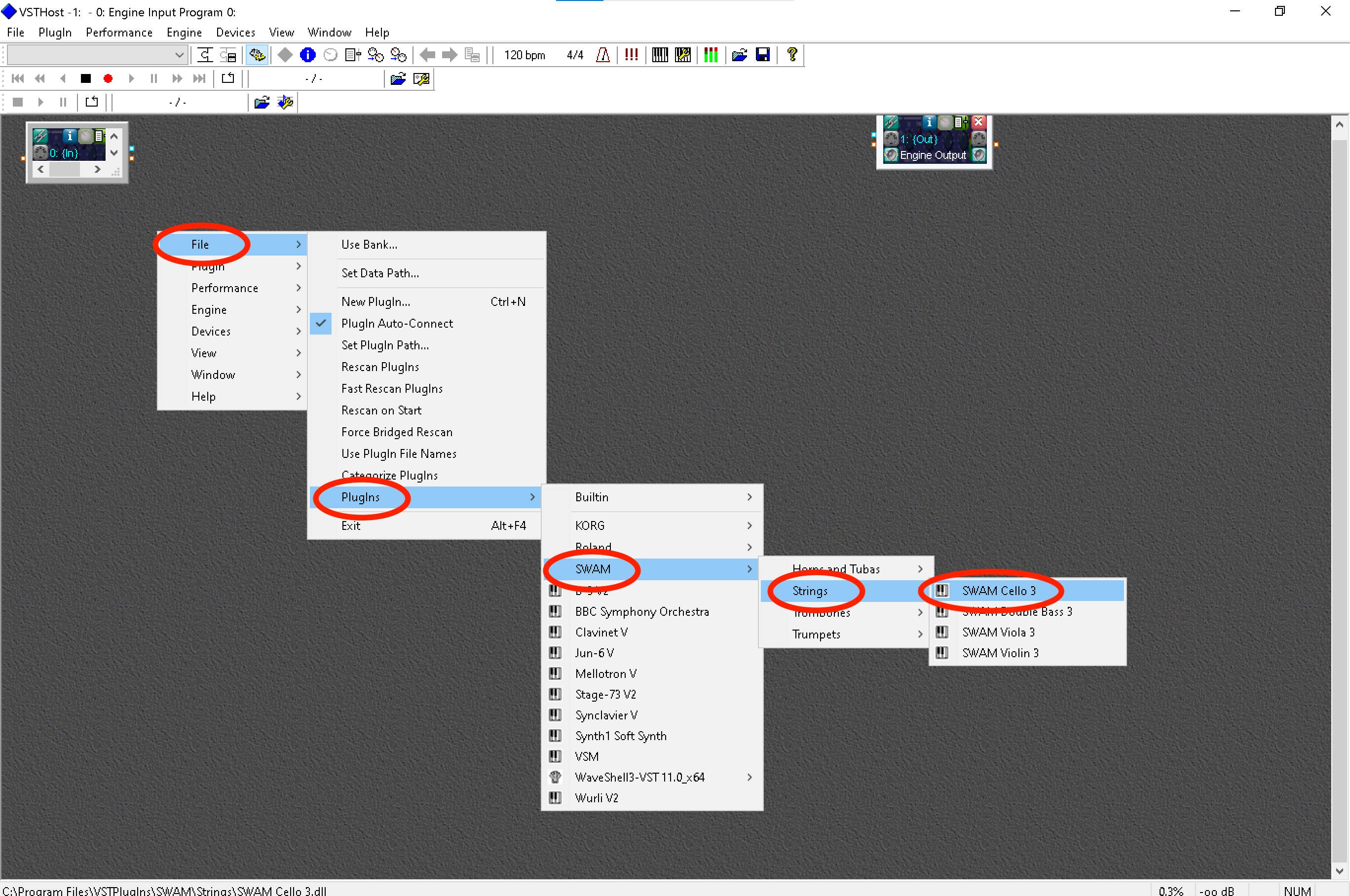
Picture 4 — Select your favorite SWAM instrument
Picture 5 — Select "MIDI..."
Picture 6 — Select your controller
Picture 7 — Choosing your audio card as the output port
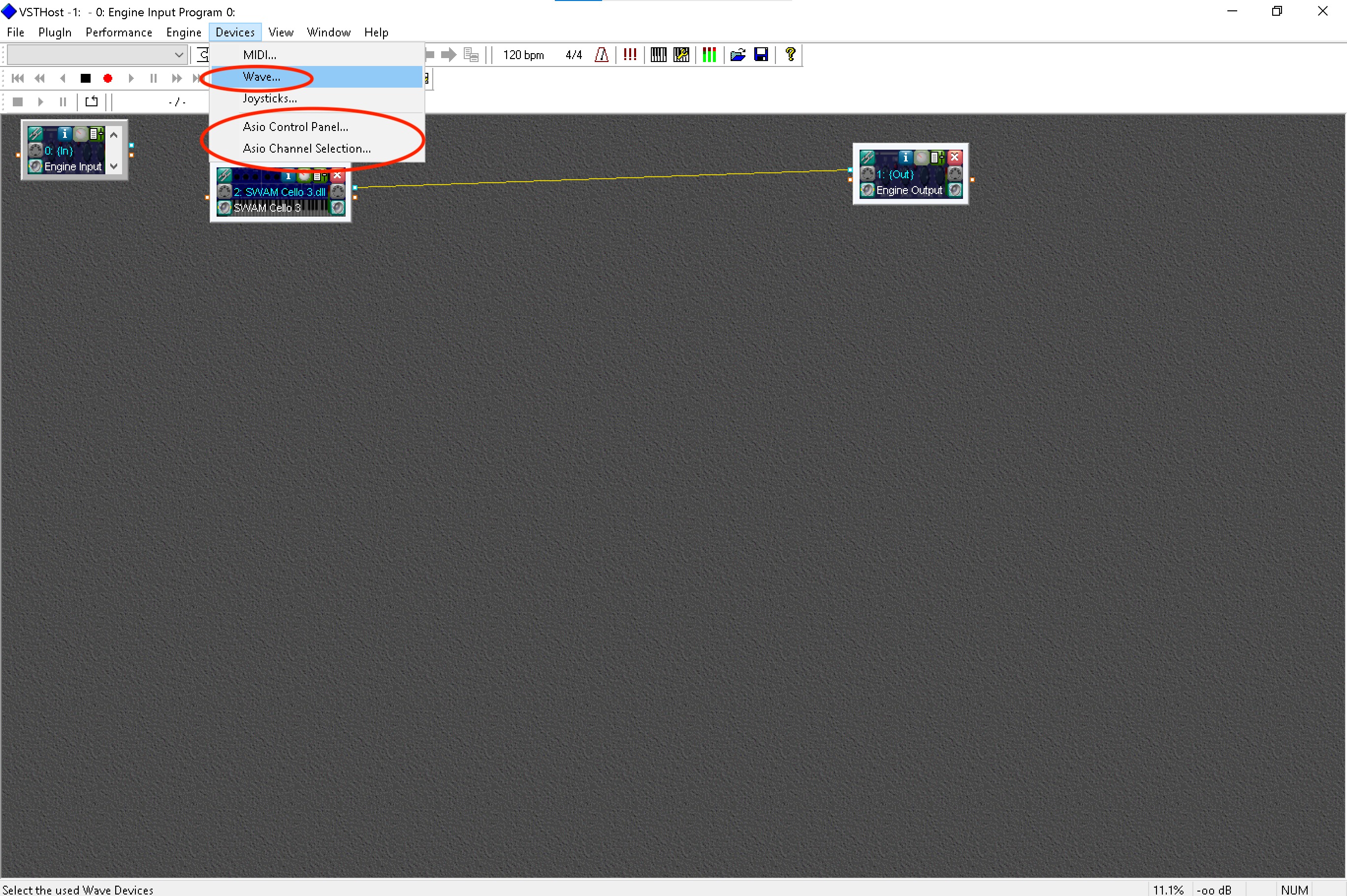
Picture 8 — Configure an ASIO driver
Picture 9 — See the plug-in's interface
Was this article helpful?
That’s Great!
Thank you for your feedback
Sorry! We couldn't be helpful
Thank you for your feedback
Feedback sent
We appreciate your effort and will try to fix the article