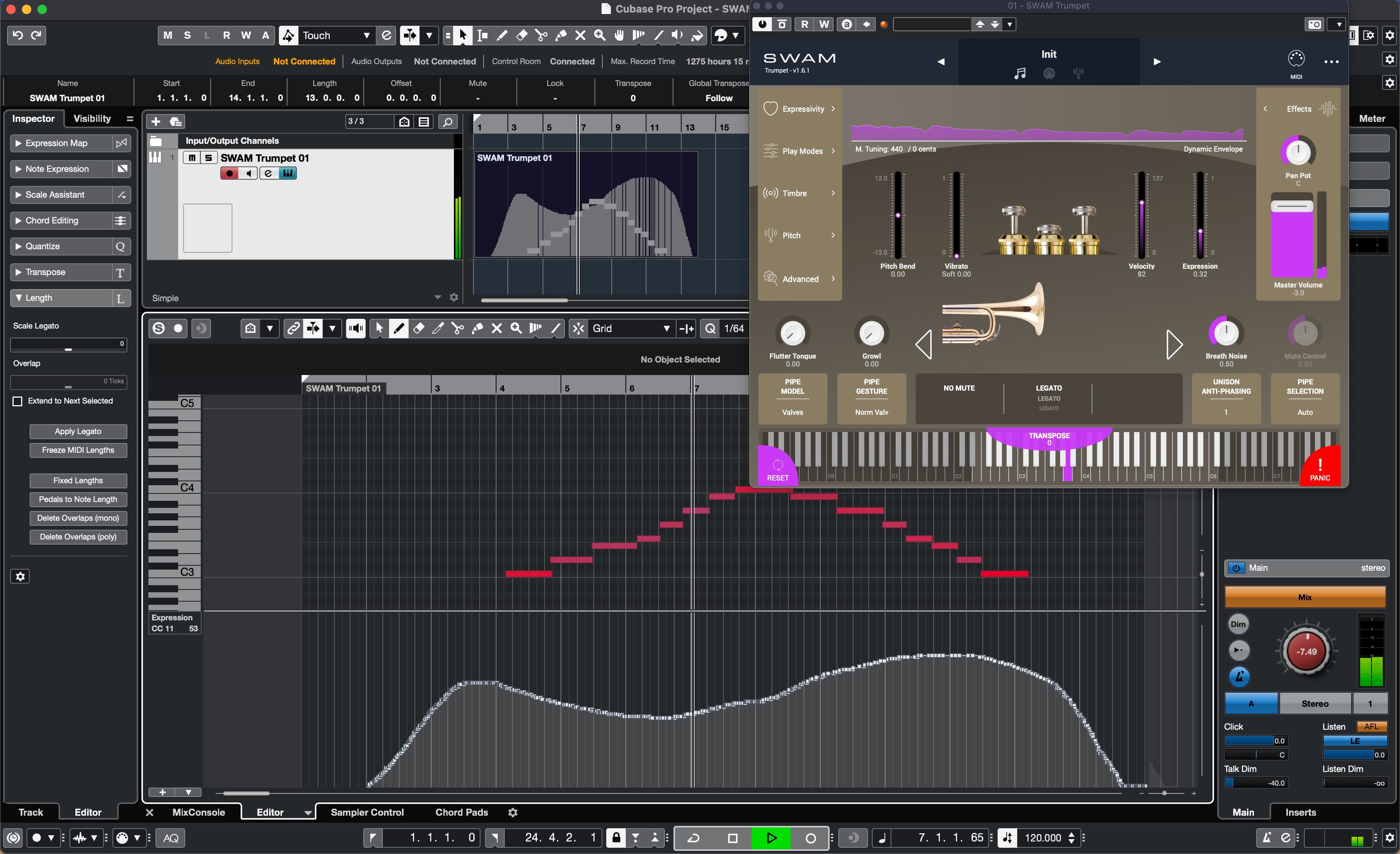
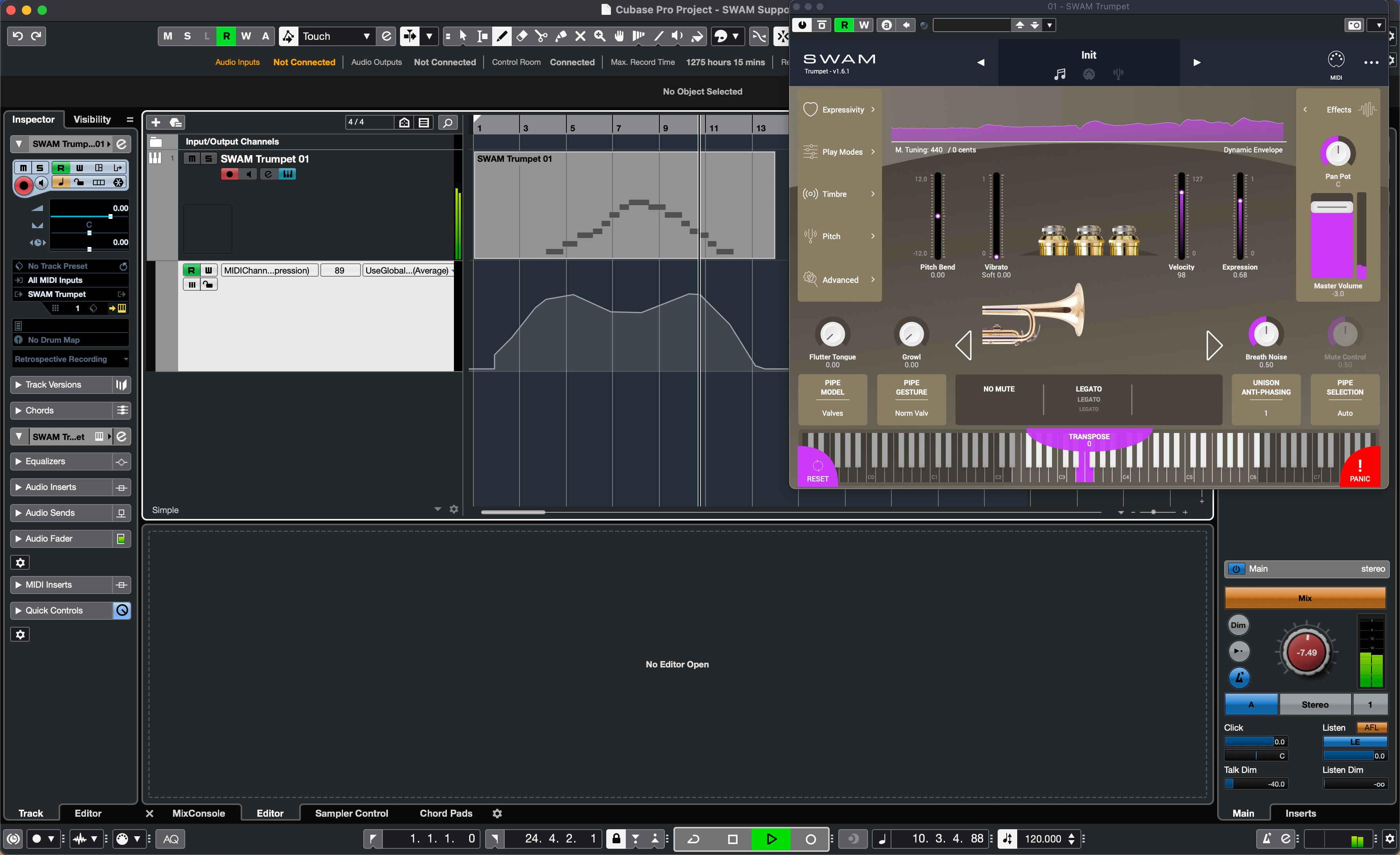
Note: You can use SWAM instruments even without a physical controller. In that case, you’ll need to draw expression curves (also called envelopes) or automations. If you don’t know how to achieve this, please refer to your DAW’s user manual.
Getting Started Guide
On Mac
- Make sure the plugin's path is /Users//Library/Audio/Plug-ins/VST.
- Open Cubase 11 and create a new project.
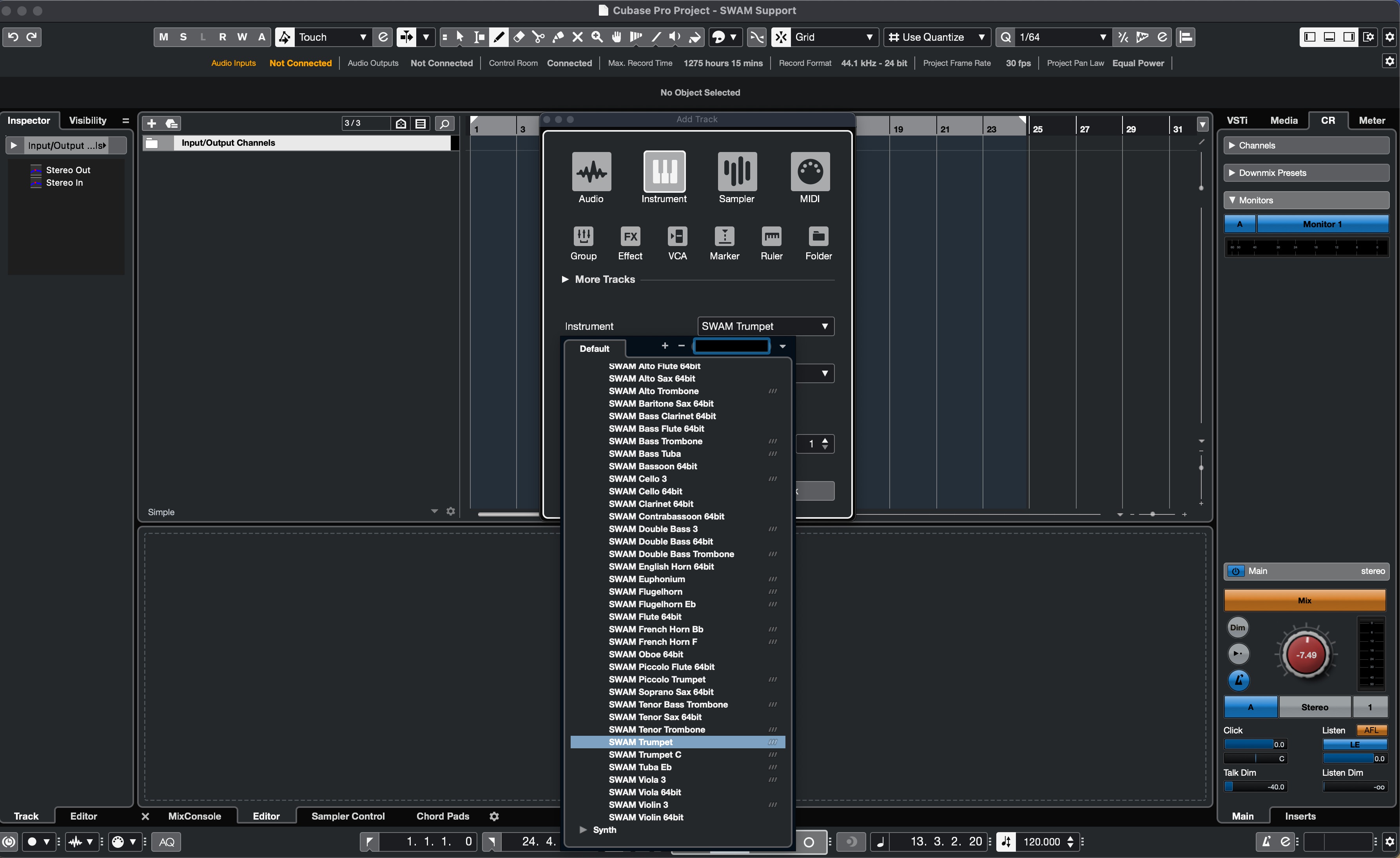
- Insert a SWAM instrument, clicking on Project -> Add Track -> Instrument . A new window appears. Choose an instrument from the list.
- Click on Add Track button.
- To see the SWAM instrument's interface, click on the icon below the instrument's name (left side of the screen).
On Windows
- Make sure the plugin's path is C:\Program Files\Steinberg\Vstplugins.
- Open Cubase 11 and create a new project.
- Insert a SWAM instrument, clicking on Project -> Add Track -> Instrument. A new window appears. Click on No VST instrument, then select your favorite instrument from the list.
- Click on Add Track.
- To see the SWAM instrument's interface, click on the icon below the instrument's name (left side of the screen).
Adding SWAM instruments
Expression Curve
Expression Automation
Was this article helpful?
That’s Great!
Thank you for your feedback
Sorry! We couldn't be helpful
Thank you for your feedback
Feedback sent
We appreciate your effort and will try to fix the article