Getting Started Guide
- Start Vienna Ensemble Pro.
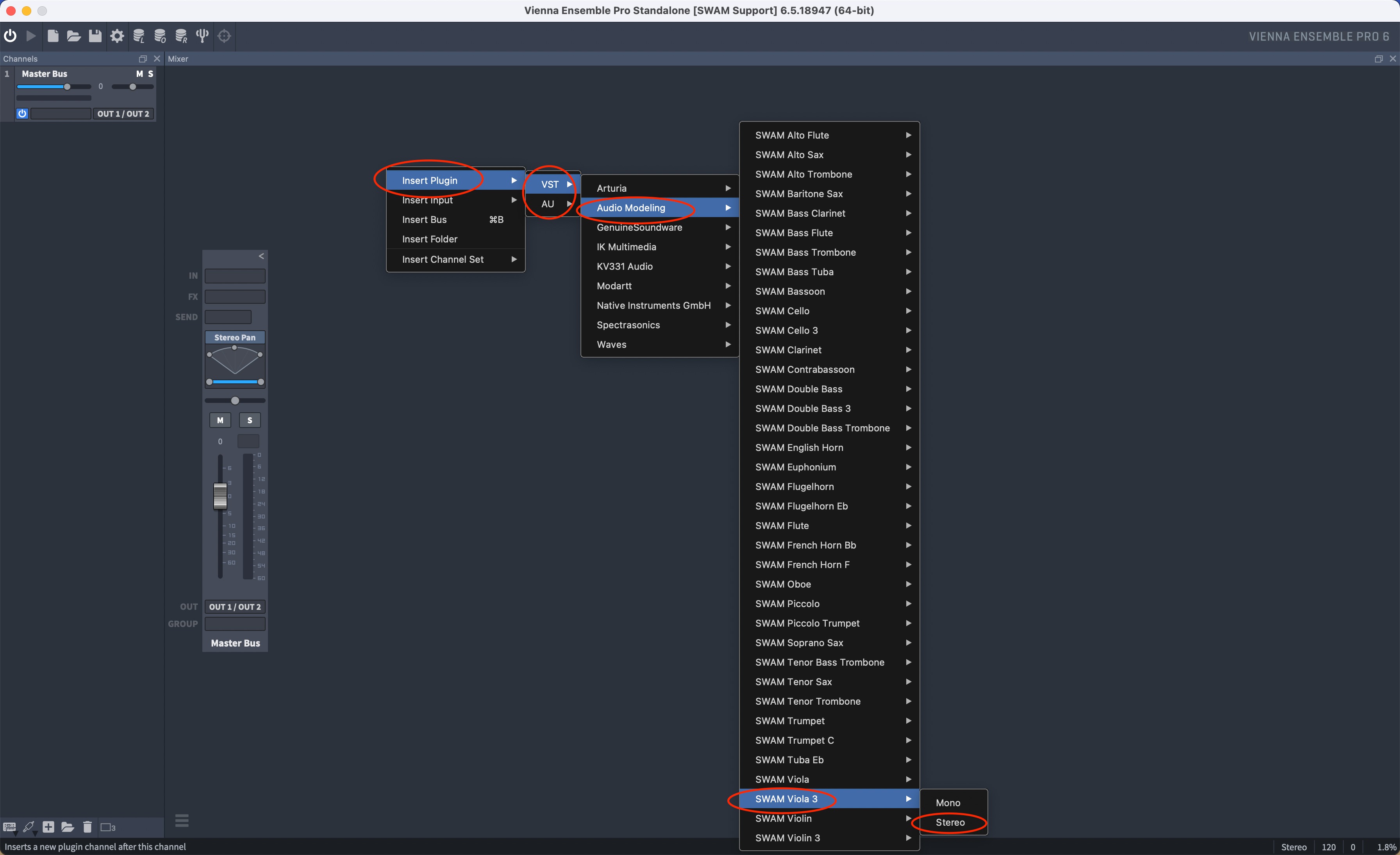
- Insert a SWAM instrument: in the main view, right-click on Channel Space > Add Plugin. Select Audio Modeling from the list and then select your favorite instrument. (Picture 1)
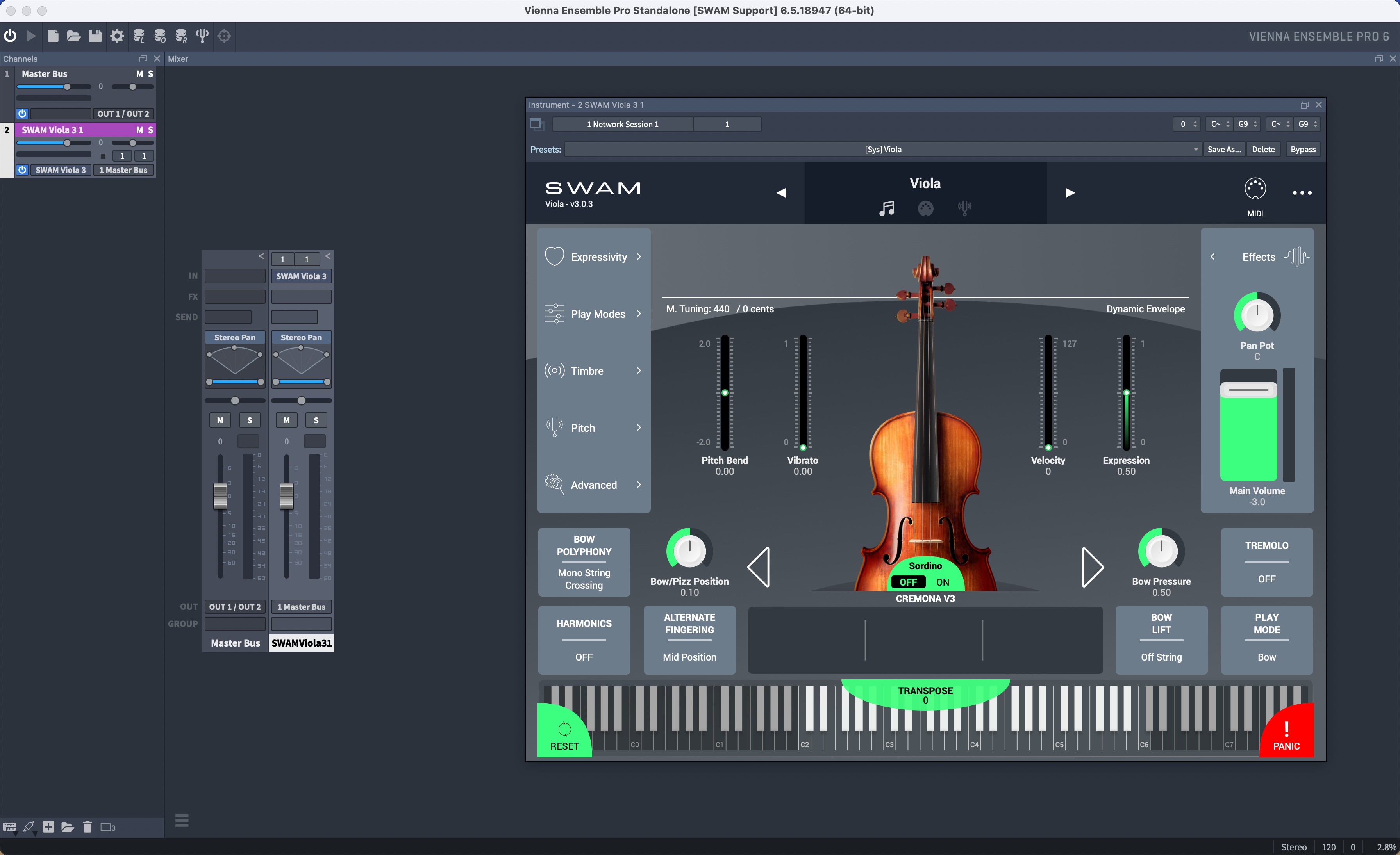
- The plug-in interface should open up automatically. (Picture 2)
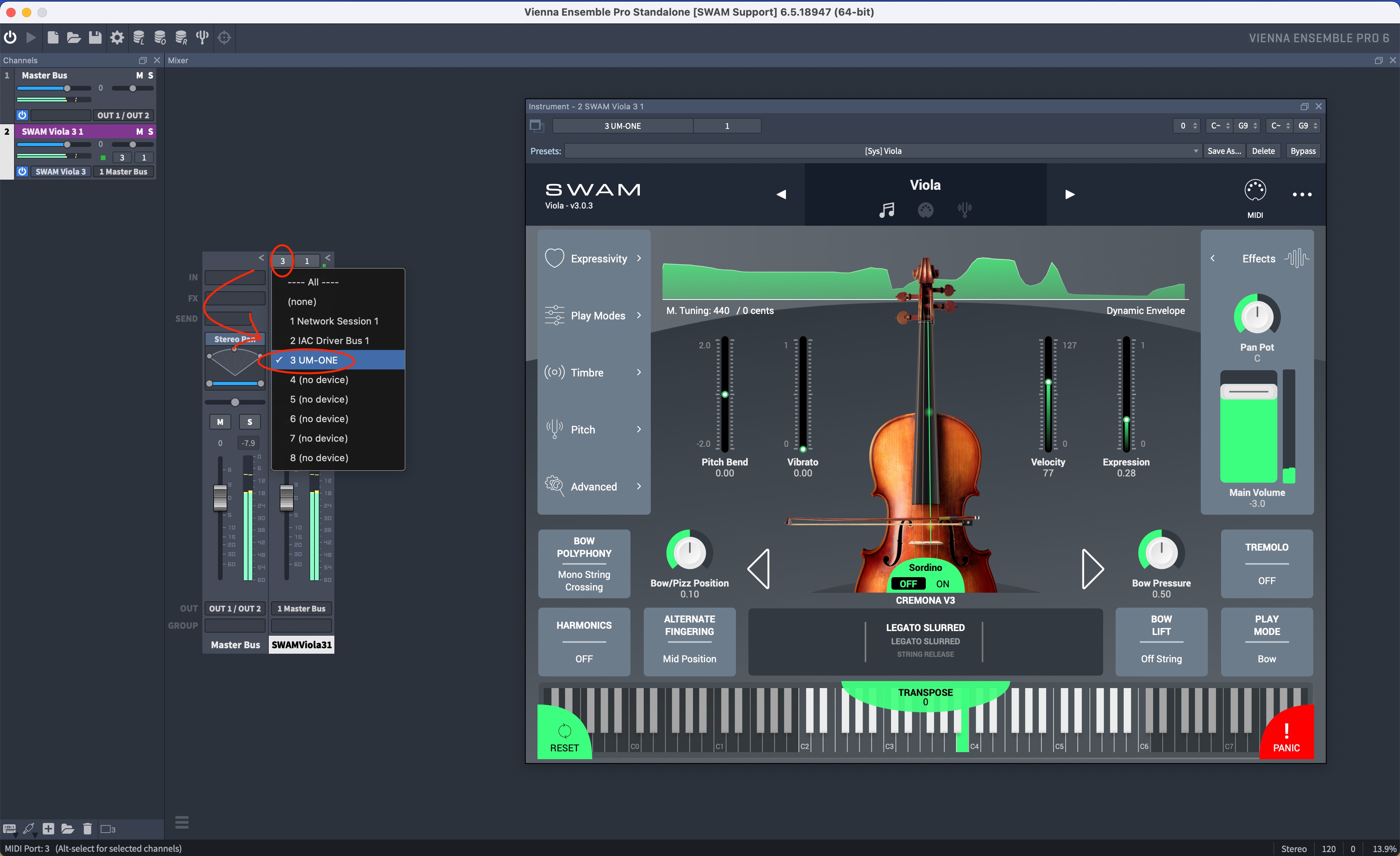
- After having configurated your Audio/MIDI devices in Preferences, click on the left button at the top of the channel to select your MIDI controller and play. (Picture 3)
Picture 1 — Insert a SWAM instrument
Picture 2 — The plug-in interface
Picture 3 — Select your MIDI controller
Was this article helpful?
That’s Great!
Thank you for your feedback
Sorry! We couldn't be helpful
Thank you for your feedback
Feedback sent
We appreciate your effort and will try to fix the article