Getting Started Guide
- Start Reaper. Open the REAPER Preferences (Options -> Preferences), select VST under the Plug-ins item.
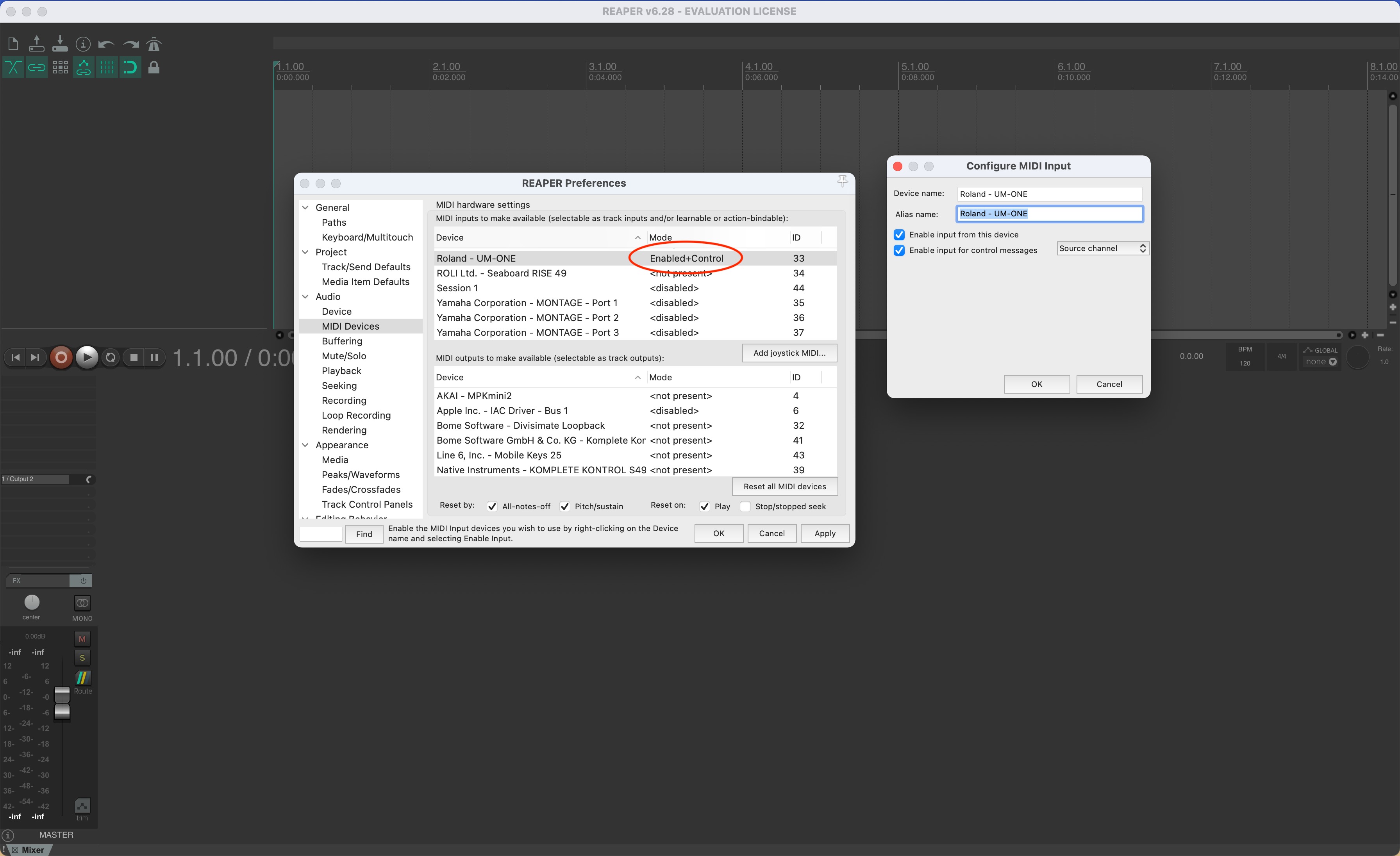
Make sure the path where your plug-ins are located is /Users/Library/Audio/Plug-ins/VST or Library/Audio/Plug-ins/VST for macOS users, and the one you specified during the installation (multiple paths must be separated) for Windows users. - Now select MIDI Device under the Audio item. Make sure your MIDI device is listed in the MIDI hardware window. Check that your MIDI device's Mode is Enabled+Control (double-click on it to open the configuration window: check that Enable input from this device and Enable input for control messages are both selected) (Picture 1)
- Close the Preferences window.
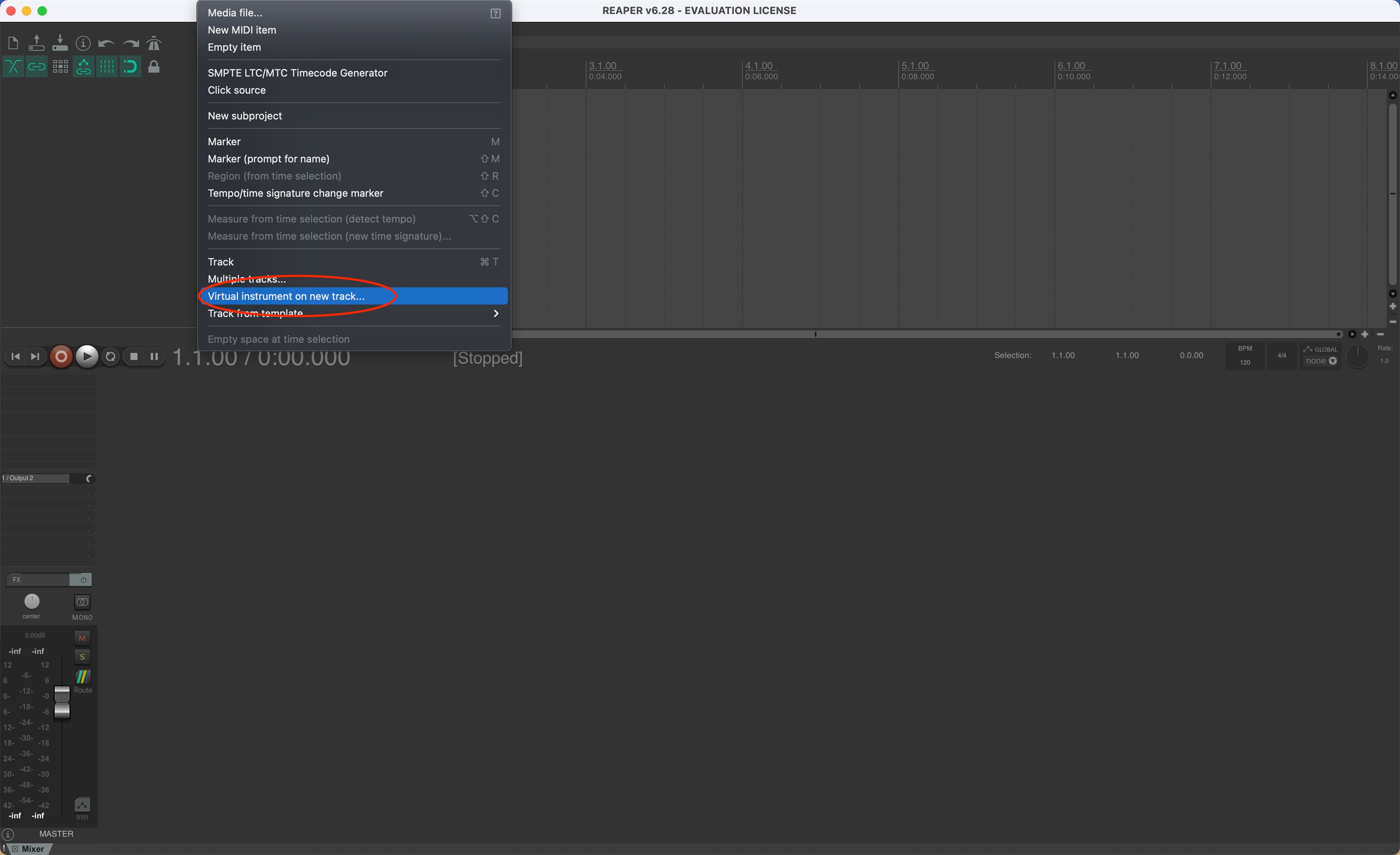
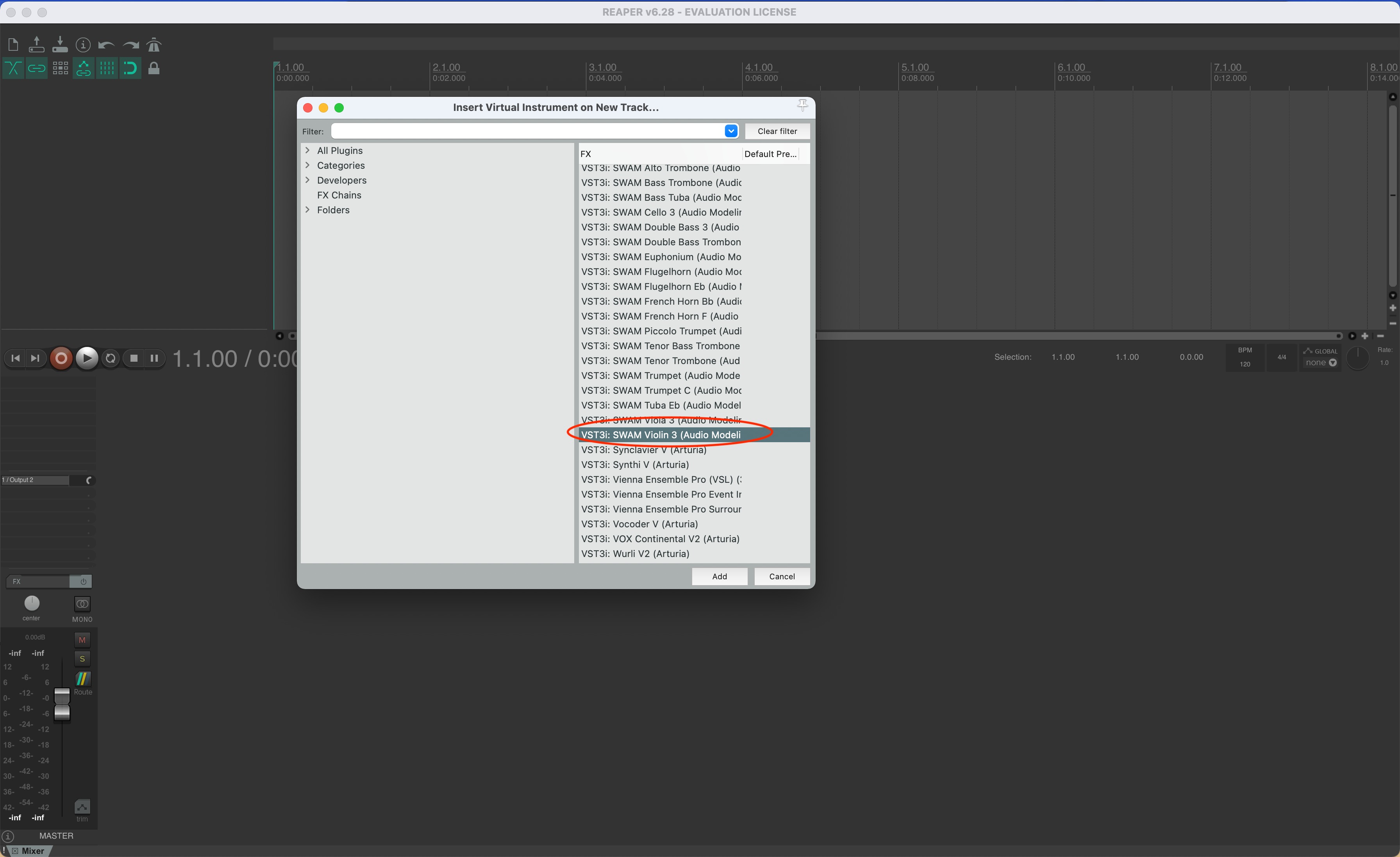
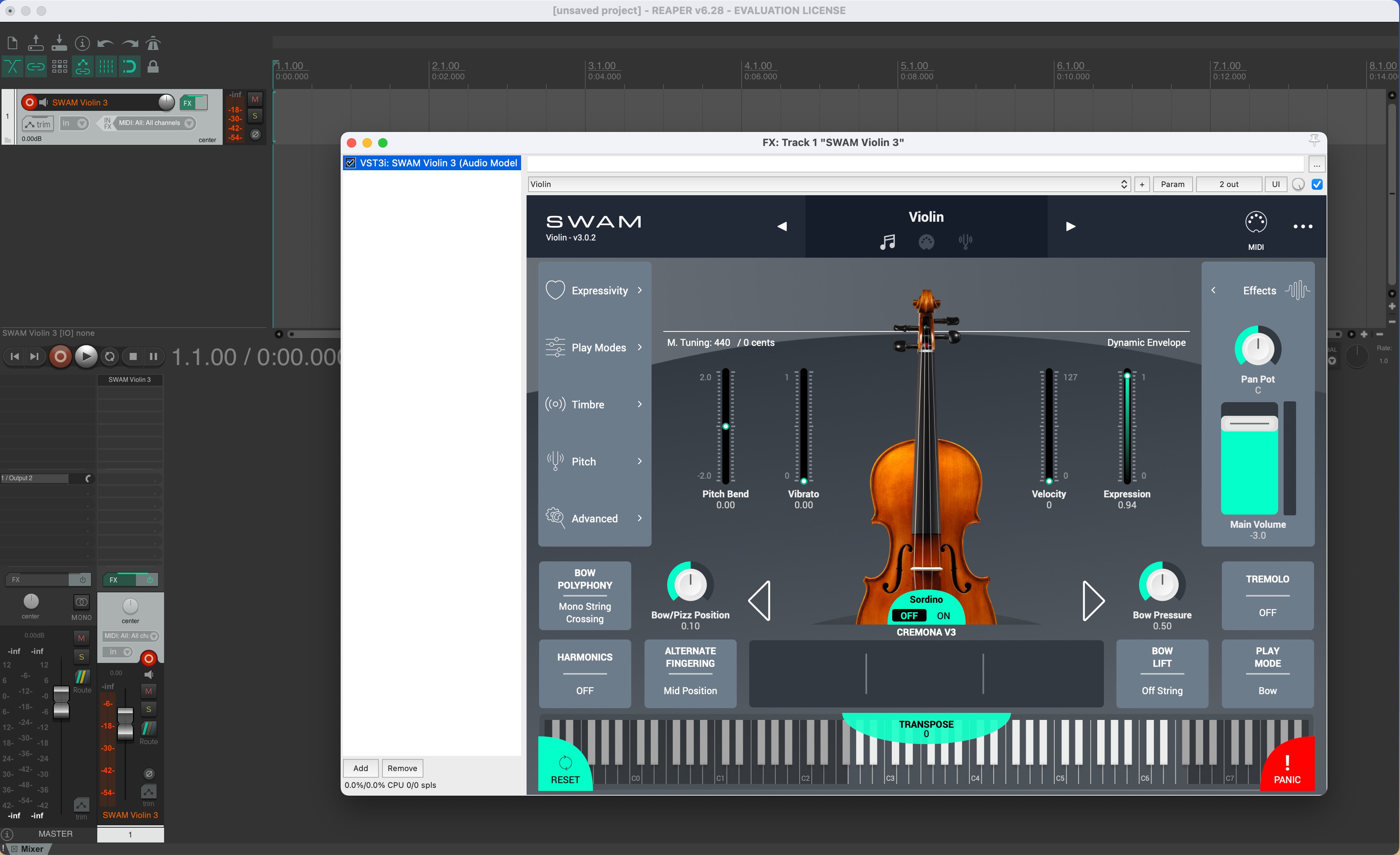
- Create a new project. Add a new Virtual Instrument track (Insert -> Virtual Instrument on new track). Search for your favorite SWAM instrument under VST3i, VSTi or AUi, select it, and click Add and play it. (Pictures 2, 3 & 4)
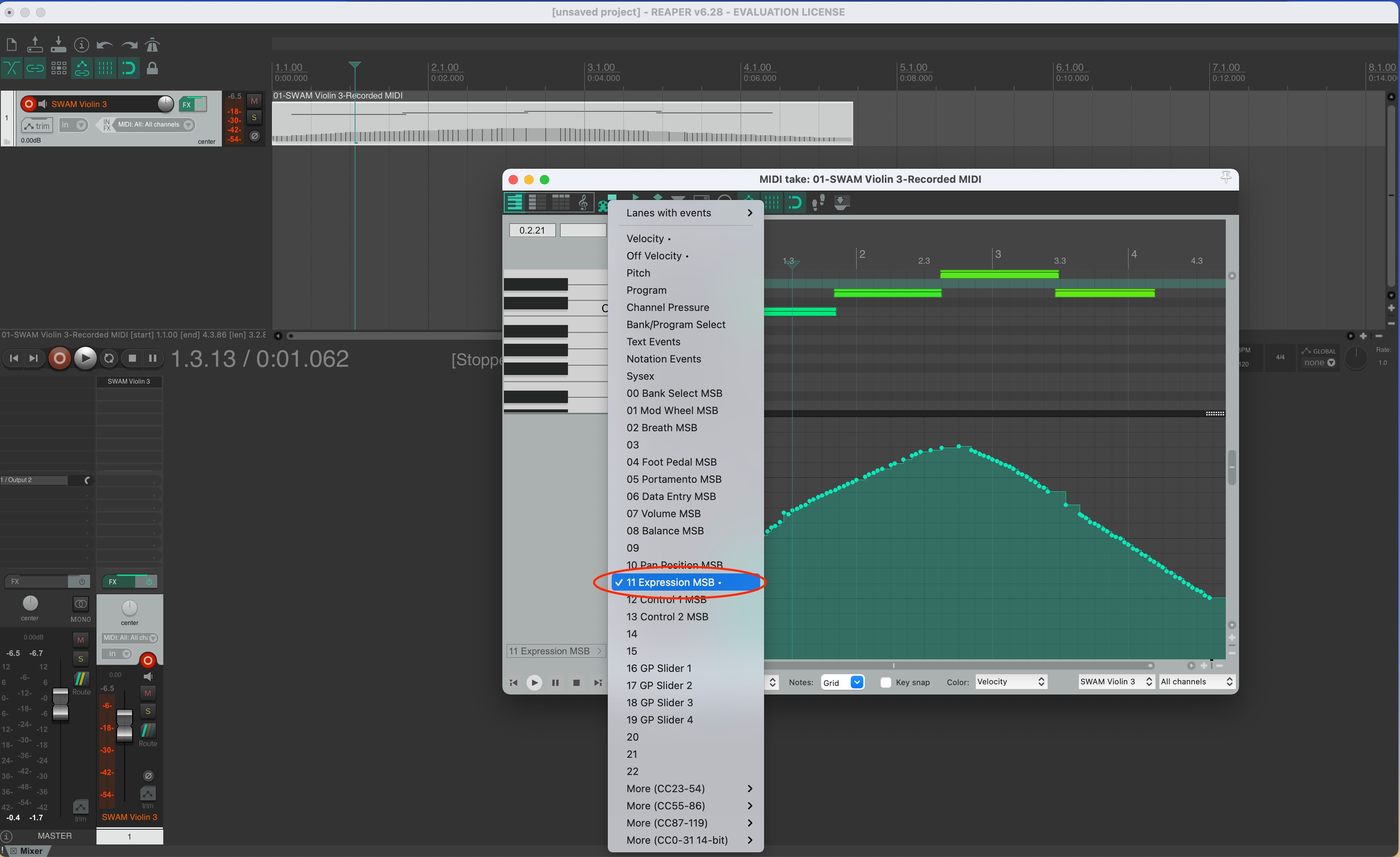
- To draw the Expression curve: double-click a MIDI region to enter the Editor view. From the CC dropdown menu, select 11 Expression MSB and draw your expression curve. (Picture 5)
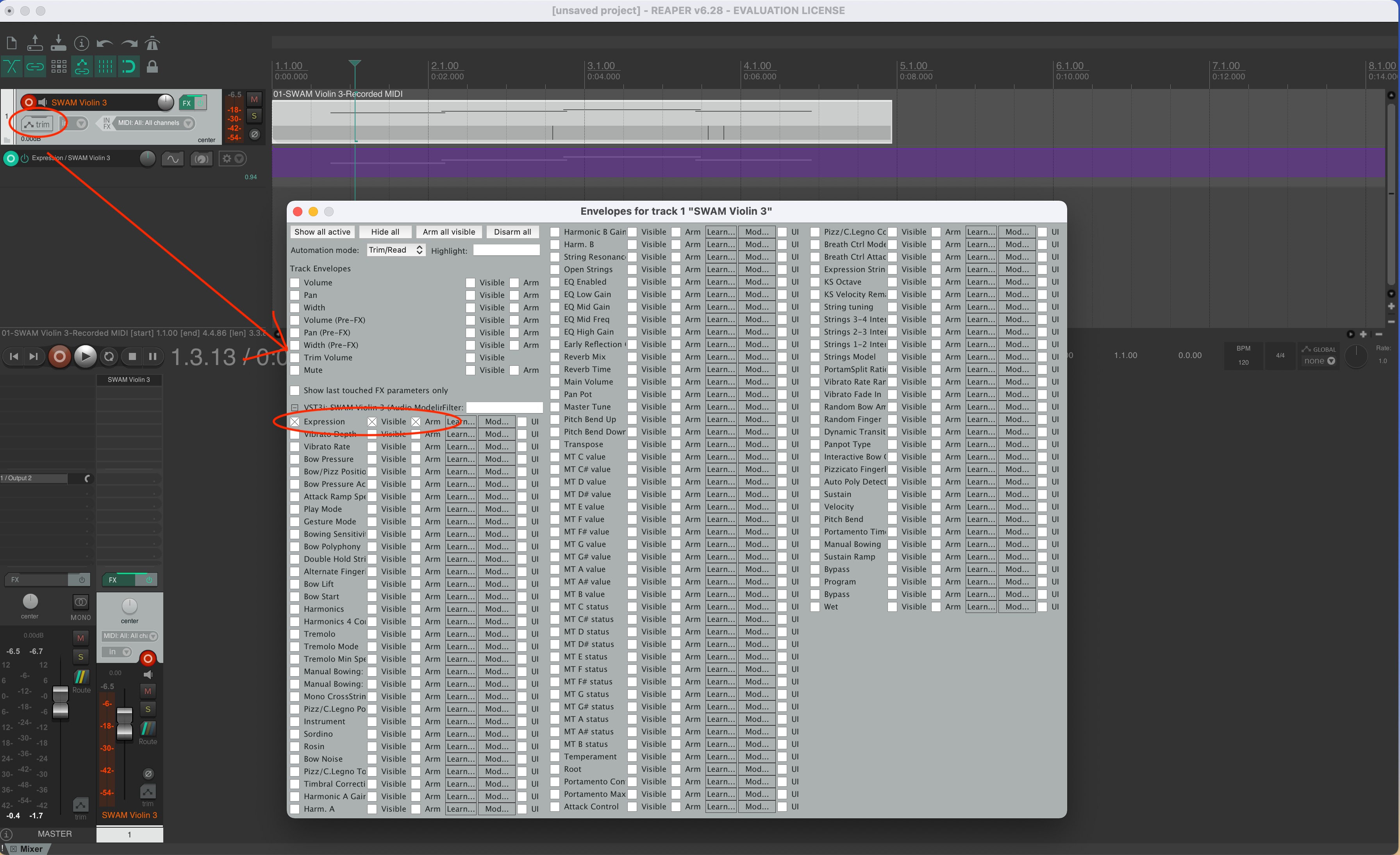
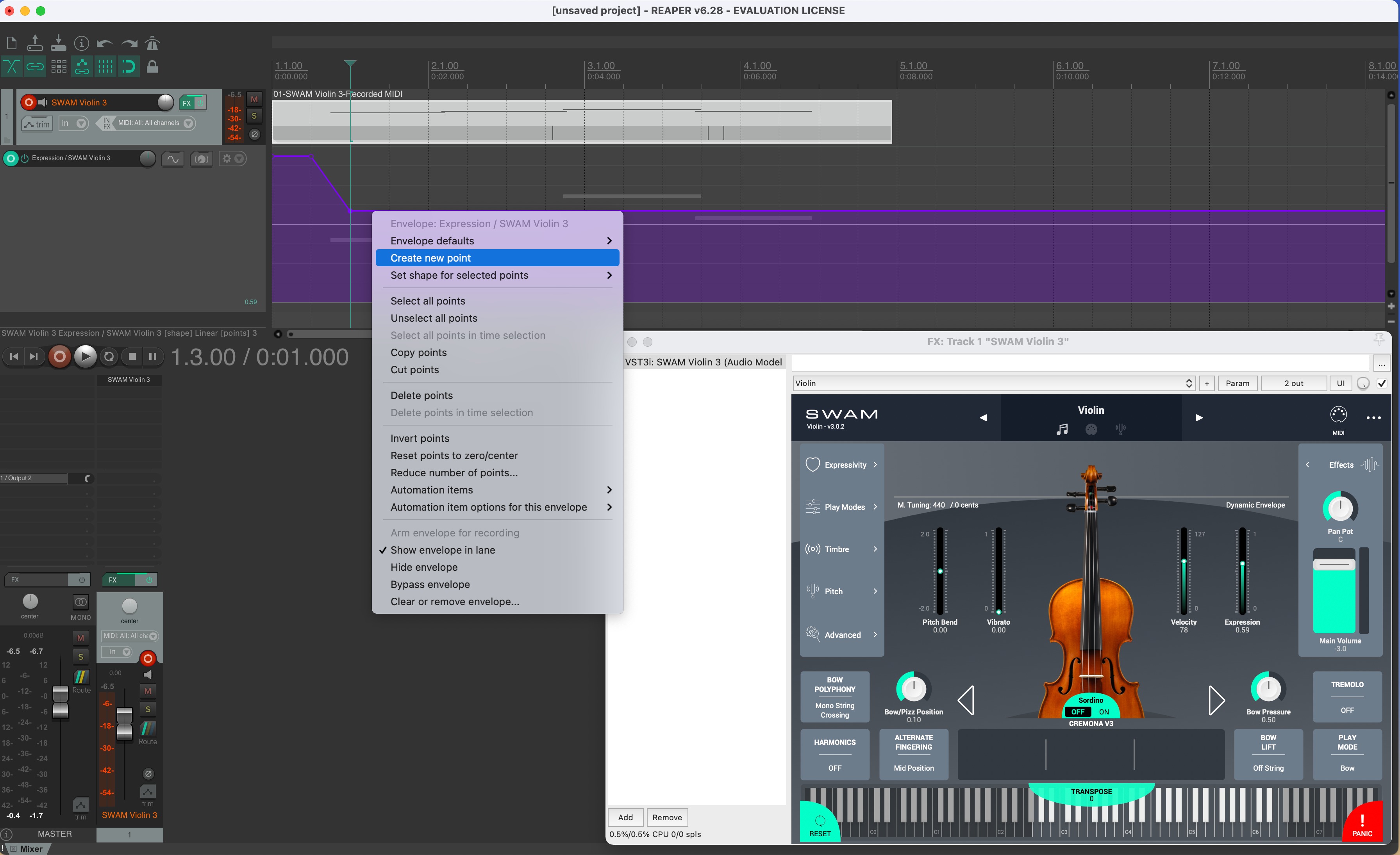
To automate the Expression parameter: click on the track automation mode and select Expression from the Envelopes list. On the expression line, right-click and select Create new point to add automation points. (Pictures 6 & 7)
Picture 1 — Select MIDI device
Picture 2 — Create a new virtual instrument track
Picture 3 — Choose a SWAM instrument
Picture 4 — Click Add and play it
Picture 5 — Draw the Expression curve
Picture 6 — Select the Expression from the Envelopes list
Picture 7 — Automate the Expression parameter
Was this article helpful?
That’s Great!
Thank you for your feedback
Sorry! We couldn't be helpful
Thank you for your feedback
Feedback sent
We appreciate your effort and will try to fix the article