Note: You can use SWAM instruments even without a physical controller. In that case, you’ll need to draw expression curves (also called envelopes) or automations. If you don’t know how to achieve this, please refer to your DAW’s user manual.
Getting Started Guide
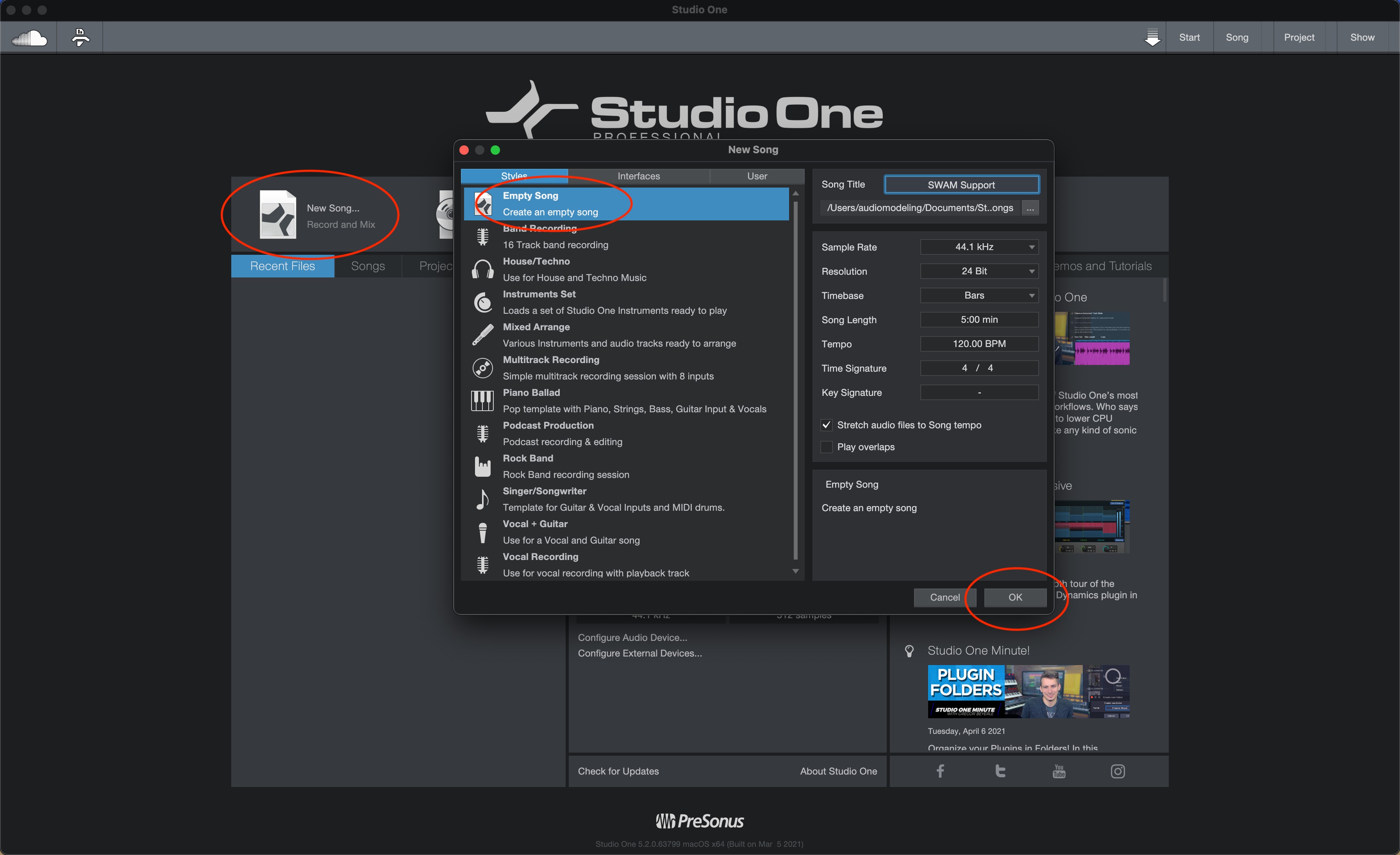
- Start Studio One 5. Click on New Song and select Empty Song in the New Song window and confirm by clicking OK (Picture 1).
- After having installed SWAM instruments, open Preferences/Options (macOS/Windows).
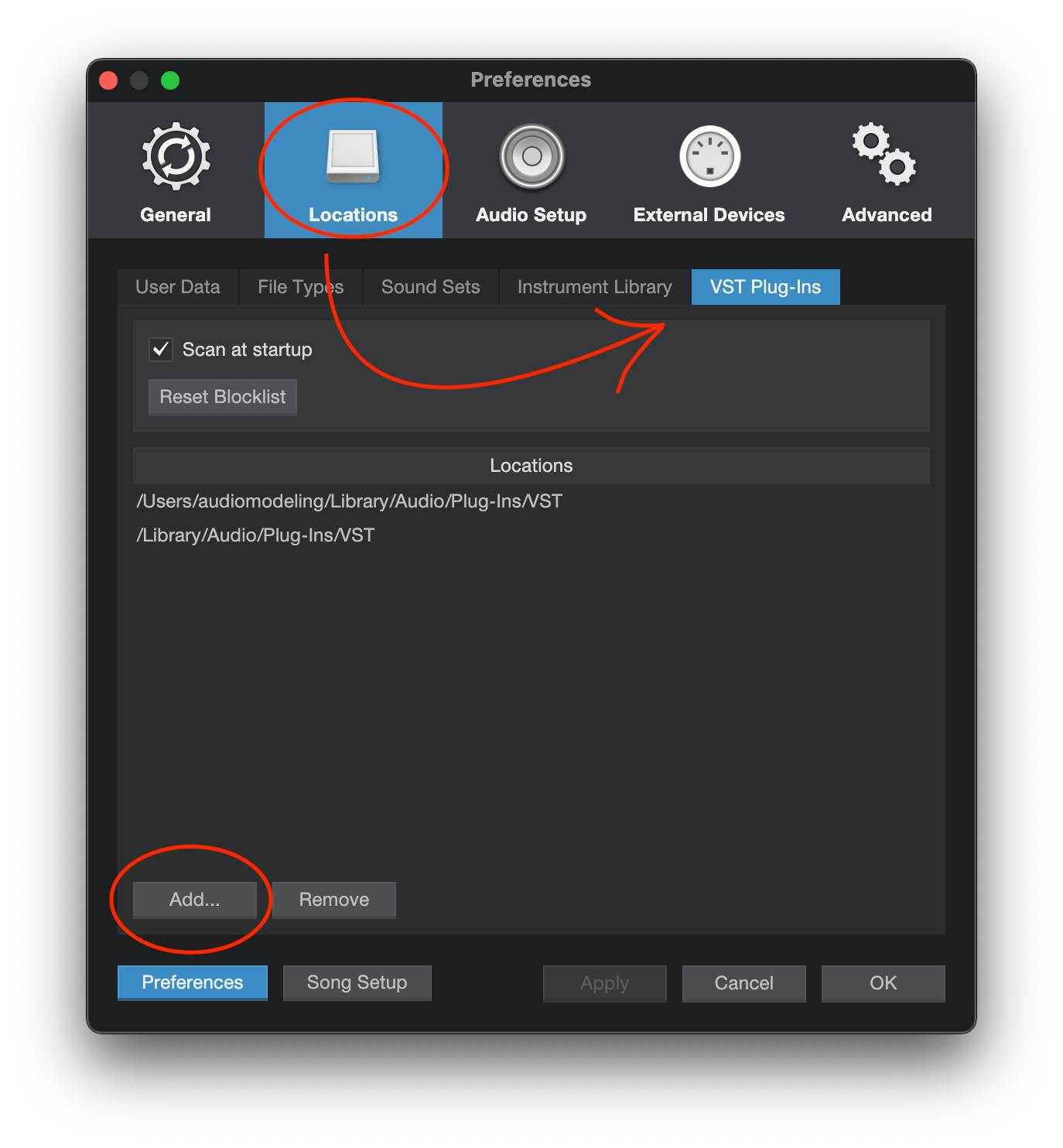
- Select Locations and then click the VST Plug-Ins tab. In the VST location list, make sure to have the correct VST and VST3 SWAM instruments path (if not, press the Add button and browse the right paths) (Picture 2).
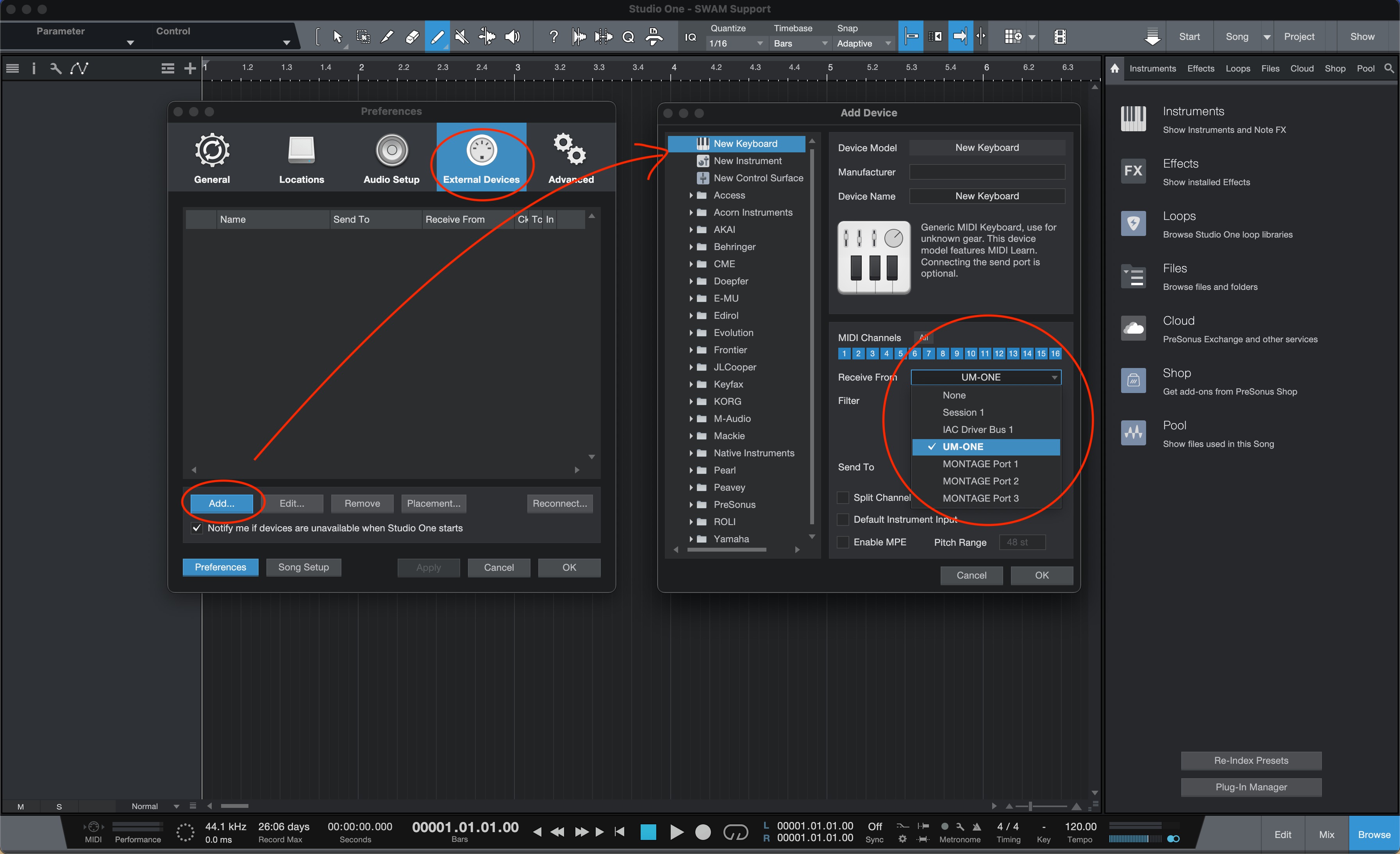
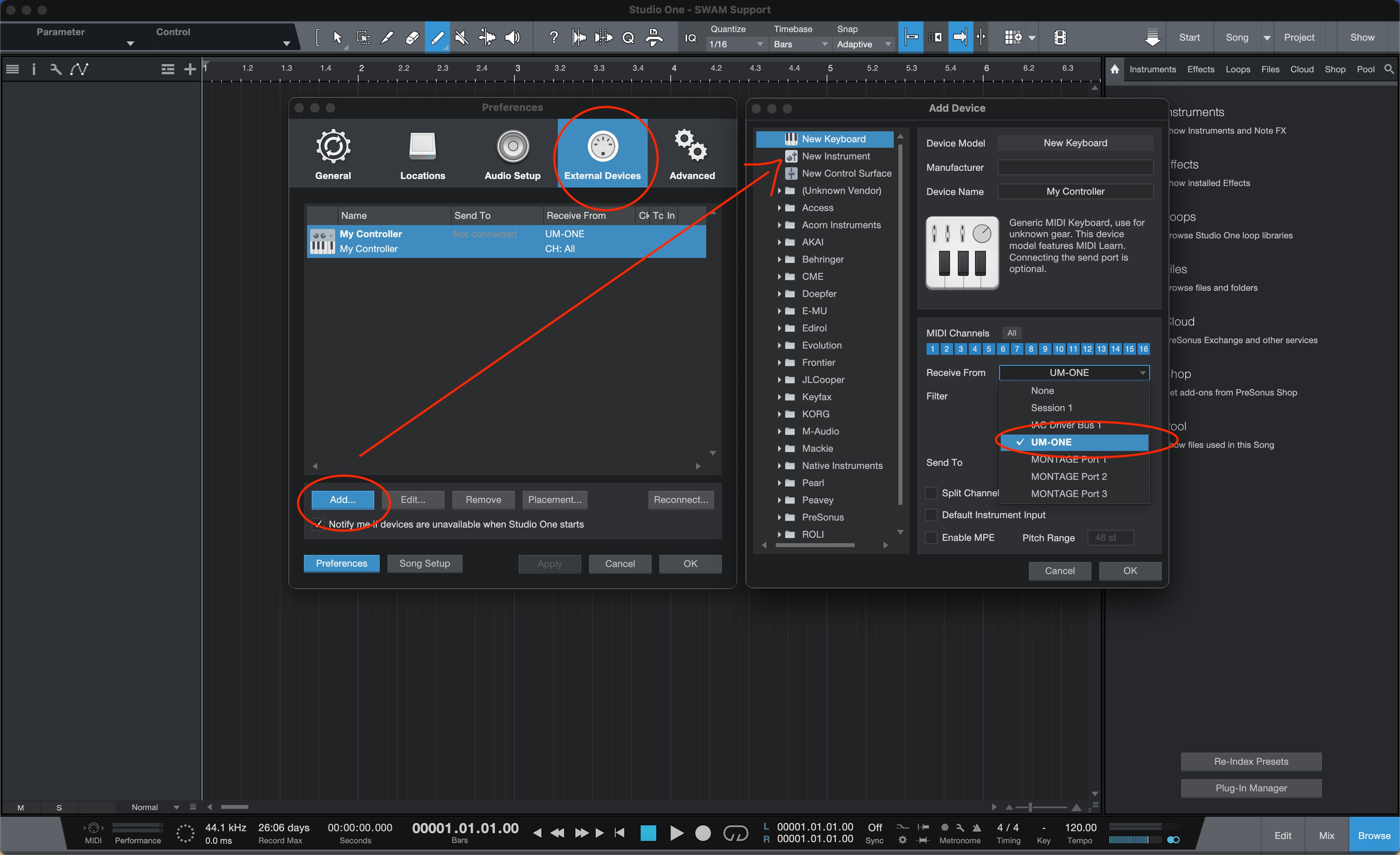
- In the same window, select External Devices and click on the name of your device. If you don't see your device listed, click the Add button to add an external device, then select New Keyboard and choose your controller from the Receive From dropdown menu. Click Ok to confirm on both the Add Device and Preferences windows (Picture 3).
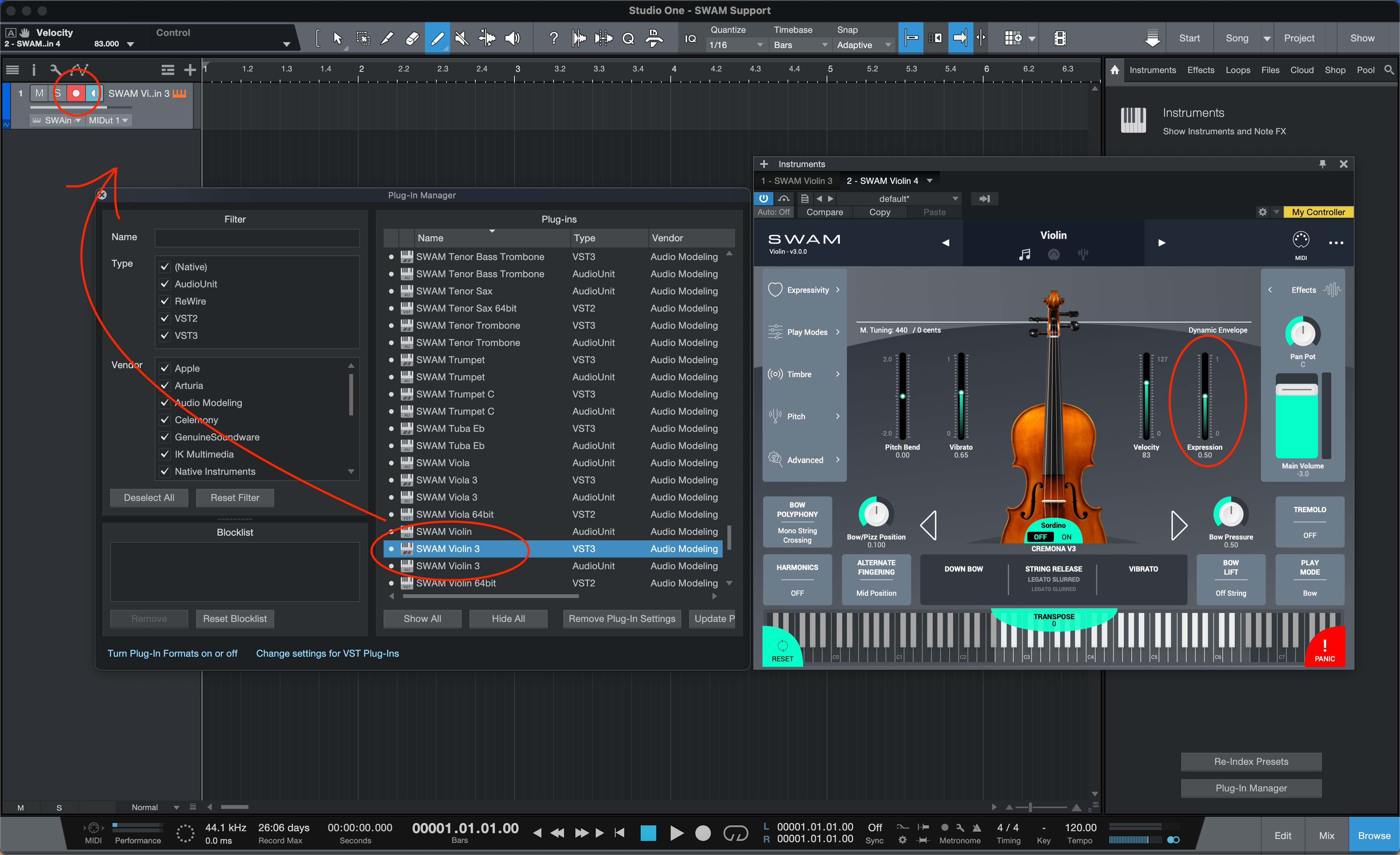
- Add a SWAM instrument track. Open the Plug-in Manager from the view dropdown menu (or press the button on the bottom of the right sidebar). Drag and drop the wanted SWAM instrument into the timeline to directly create a SWAM instrument track. Make sure to have your track armed (track Rec button enabled). Then, move the expression controller to play your SWAM instrument. (Pictures 4 & 5)
Important note
If you are using an MPE controller, Studio One currently only supports MPE on VST2 plug‑ins, not VST3 or AU plug‑ins. The way Studio One handles plug‑ins is that if there’s a VST3 version available, it will hide the VST2 version in the list of available instruments. Moreover to make it work you need to enable MPE mode on both controller and plugin.
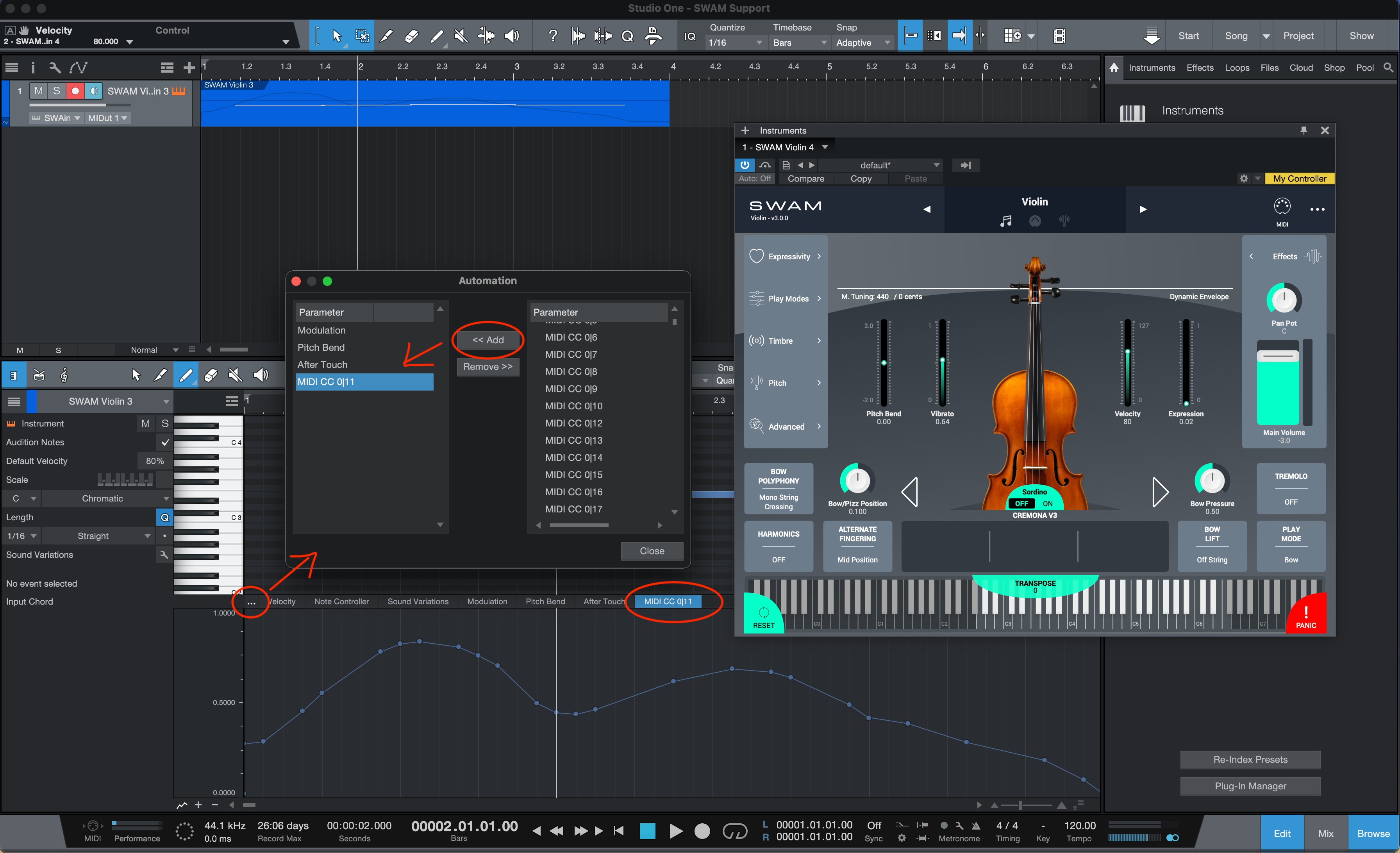
- Draw the CC11 Expression curve. Double-click on the MIDI file to enter the MIDI Edit view. Click on the three dots (...) to add or remove Control Changes (or MIDI parameters) to automate. Add CC11 from the right side list to the left side of the Automation window. Then, select the CC11 tab and draw the curve. (Picture 6)
- Draw the Expression automation. Select the SWAM track and press A to show the automation (or click on the Automation icon). Click on the track dropdown menu and select Add/Remove. On the right side list, select Expression from the Expressivity Group folder and add it to the window of the left side list. Select Expression from the track's dropdown menu and draw the automation (Picture 7).
Picture 1 — Create a new song
Picture 2 — Select VST Plug-Ins paths
Picture 3 — Select your external device
Picture 4 — Add New Instrument
Picture 5 — Add SWAM instrument track
Picture 6 — Draw the CC11 Expression curve
Picture 7 — Draw the Expression automation

Was this article helpful?
That’s Great!
Thank you for your feedback
Sorry! We couldn't be helpful
Thank you for your feedback
Feedback sent
We appreciate your effort and will try to fix the article