Important Note
Pro Tools only supports AAX plugins.
Getting Started Guide
- Open Pro Tools and create a new project.
- Create a new track by clicking on Track > New. Select Stereo in the opened window and choose Instrument Track instead of Audio Track. Then click on Create. (Picture 1)
- Click under Insert A-E, select the option multichannel plug-in > Instrument > choose your favorite SWAM instrument (Picture 2). The SWAM interface should open up automatically. (Picture 3)
- Draw the Expression curve by clicking on the little arrow on the track. This will open the CC automation track. Select Controllers -> Expression (11) in the CC dropdown menu. Draw your expression curve on the timeline. (Picture 4 & 5)
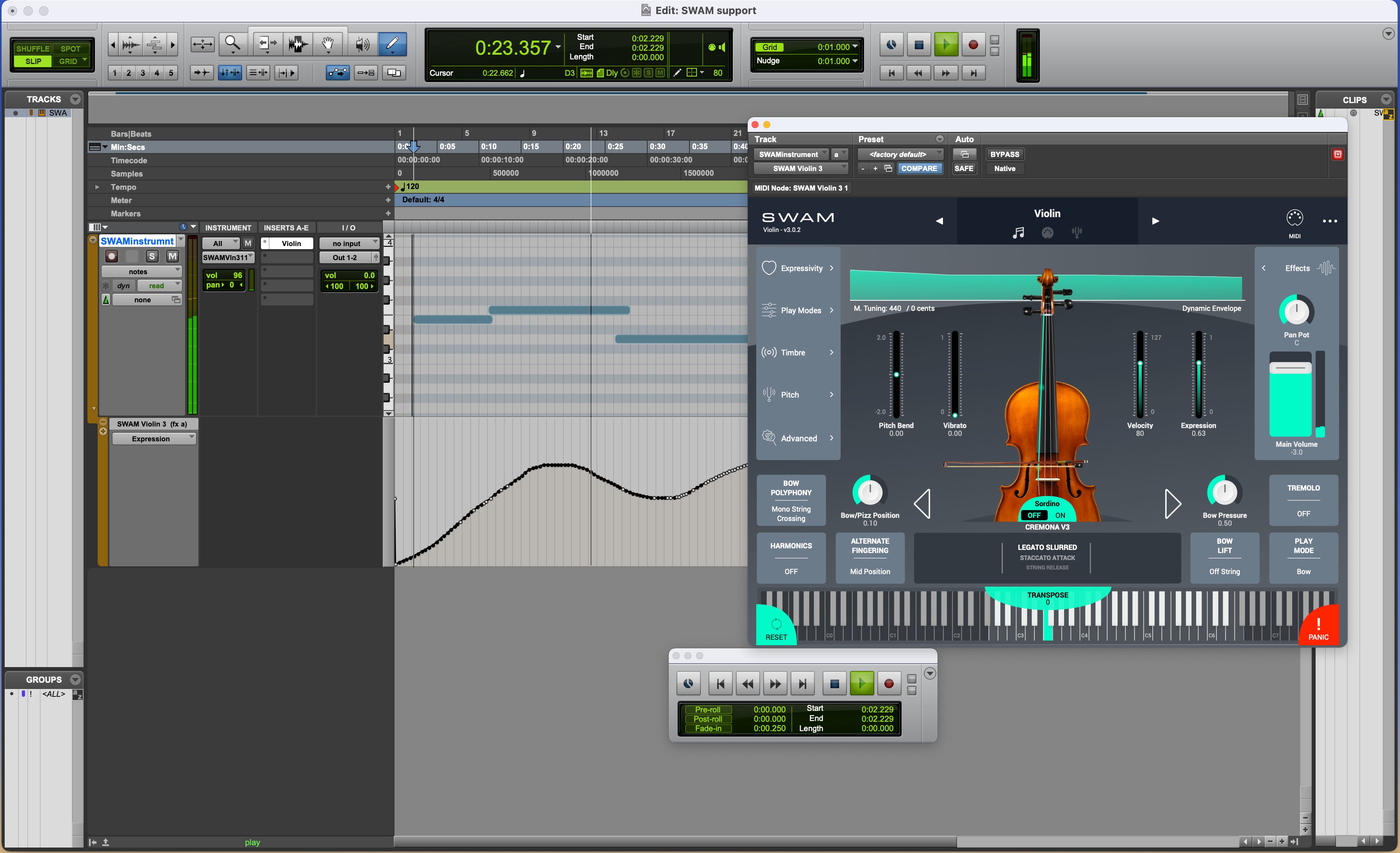
- To automate the Expression parameter (only for SWAM Brass and SWAM Strings v3.x), open the SWAM instrument interface and click on the Plug-In Automation button at the top. Select and add Expression to the parameters list. Select Expression from the automation track dropdown menu under the SWAM instrument's parameters list. (Picture 6, 7, 8 & 9)
Note: By default, Pro Tools filters Aftertouch messages. This prevents controlling SWAM instruments and other plugins through expressive controllers, like the Seaboard or the LinnStrument. To remove the filter, go to Setup Menu > MIDI > Input Filter .
Picture 1 — Create a new track
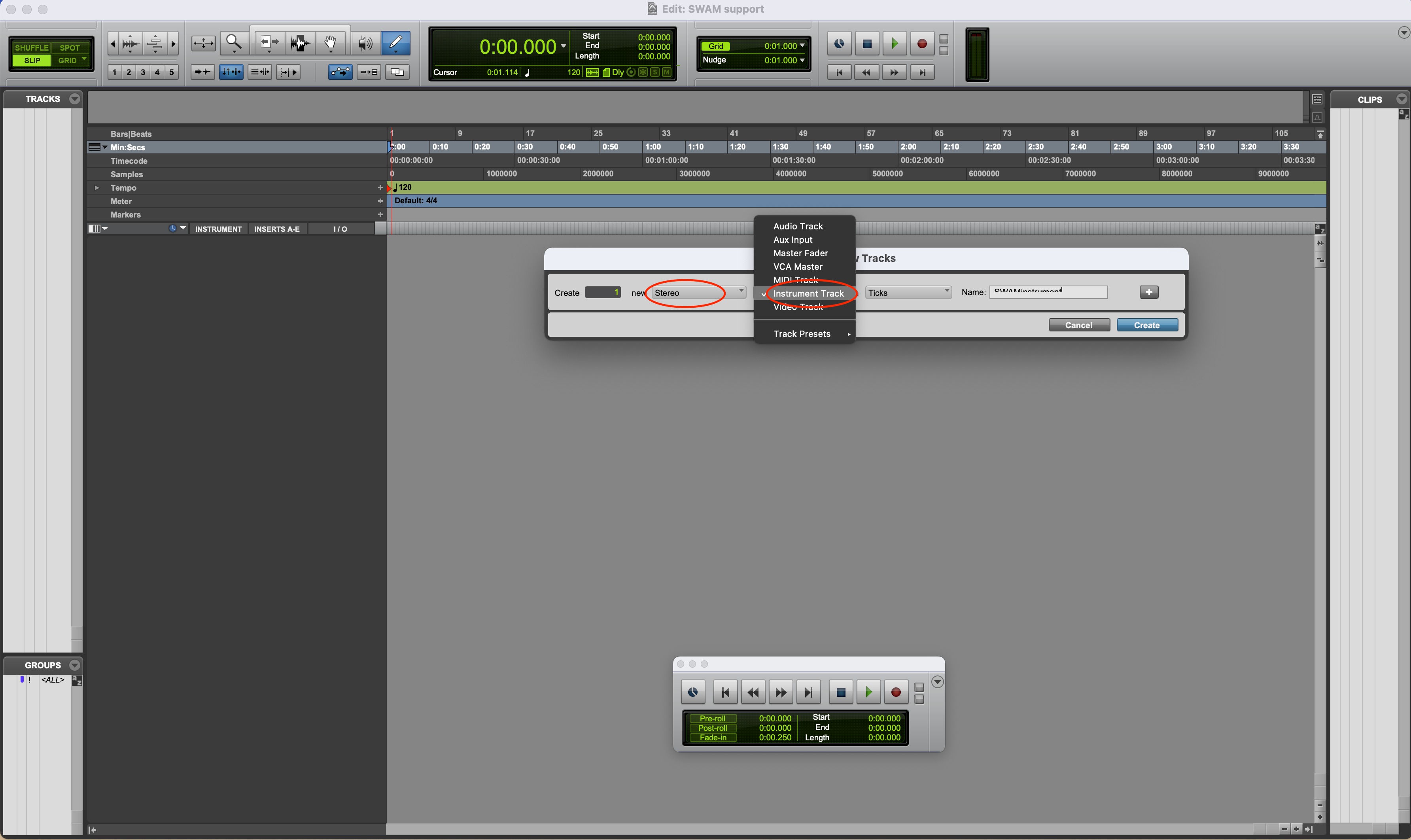
Picture 2 — Select your chosen SWAM instrument
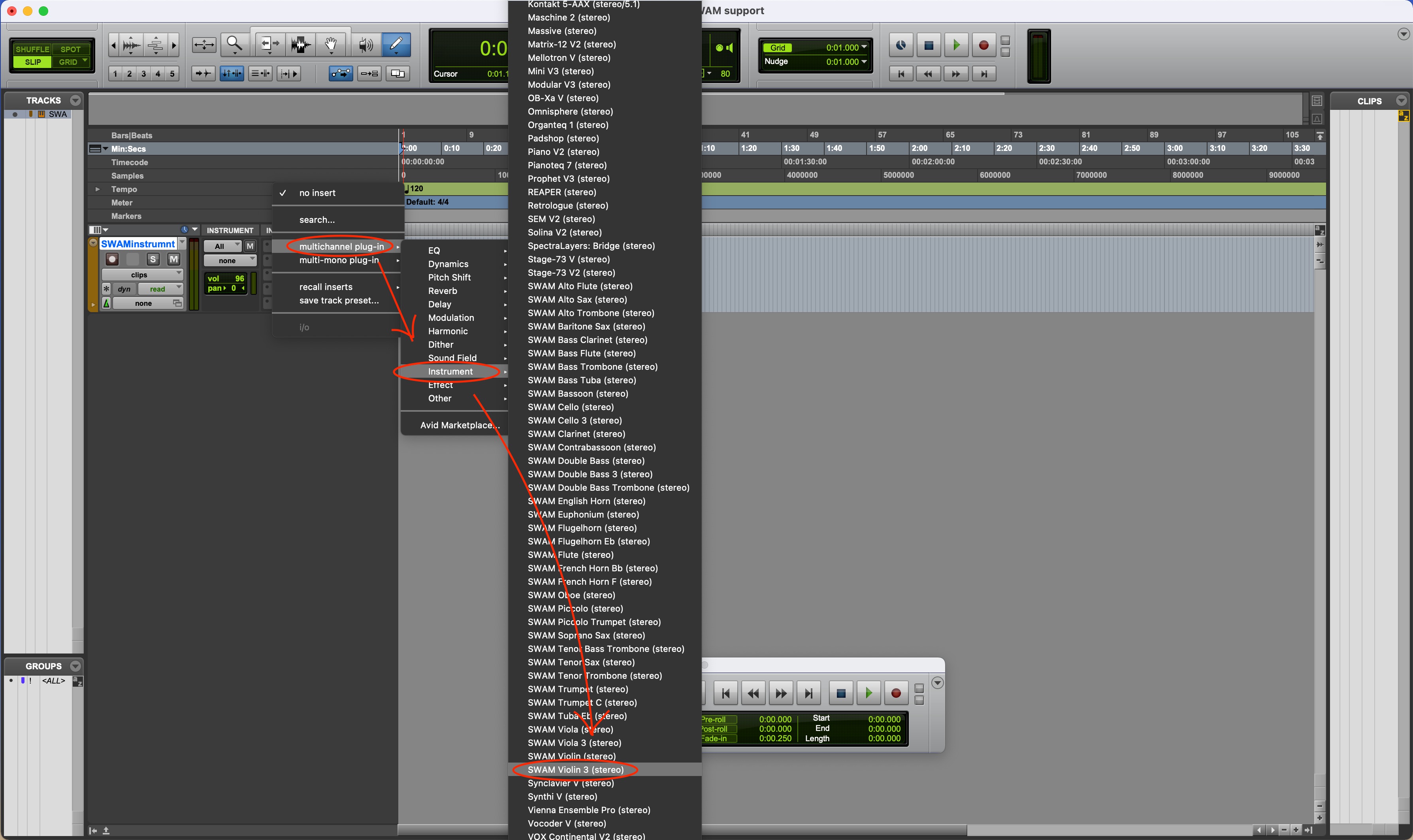
Picture 3 — The SWAM interface shows up automatically
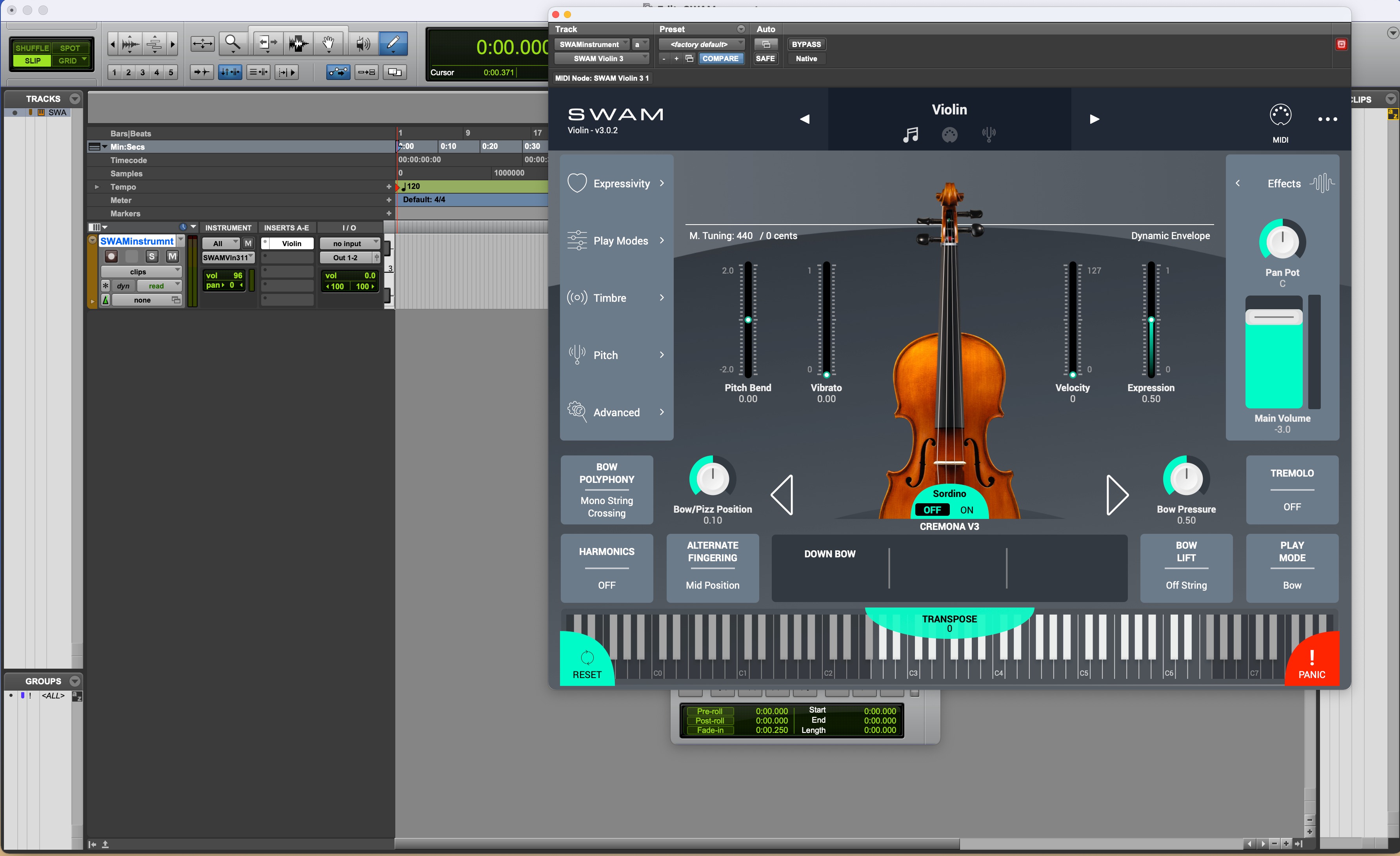
Picture 4 — Select Expression (11) from the dropdown menu
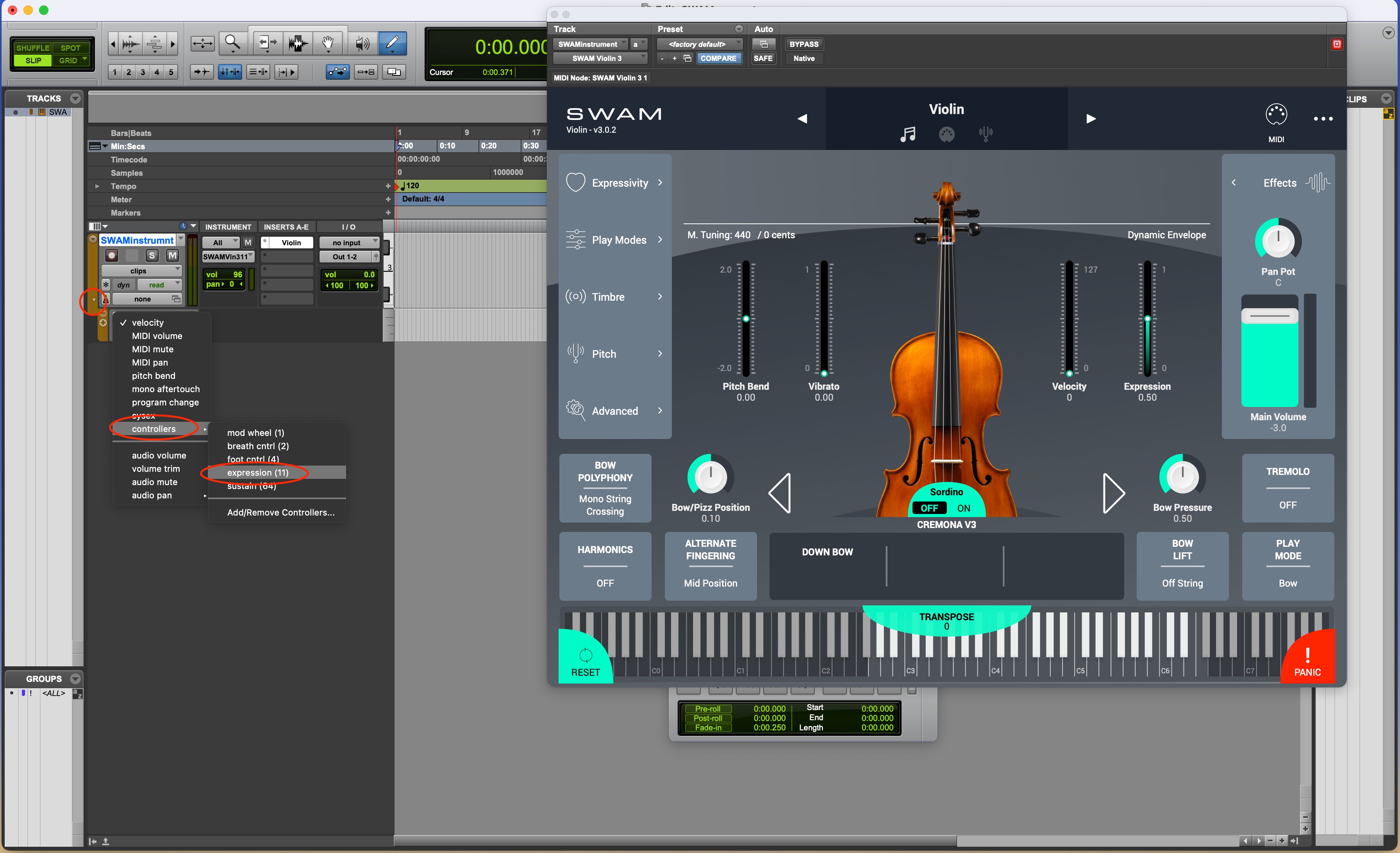
Picture 5 — Draw the Expression curve on the timeline
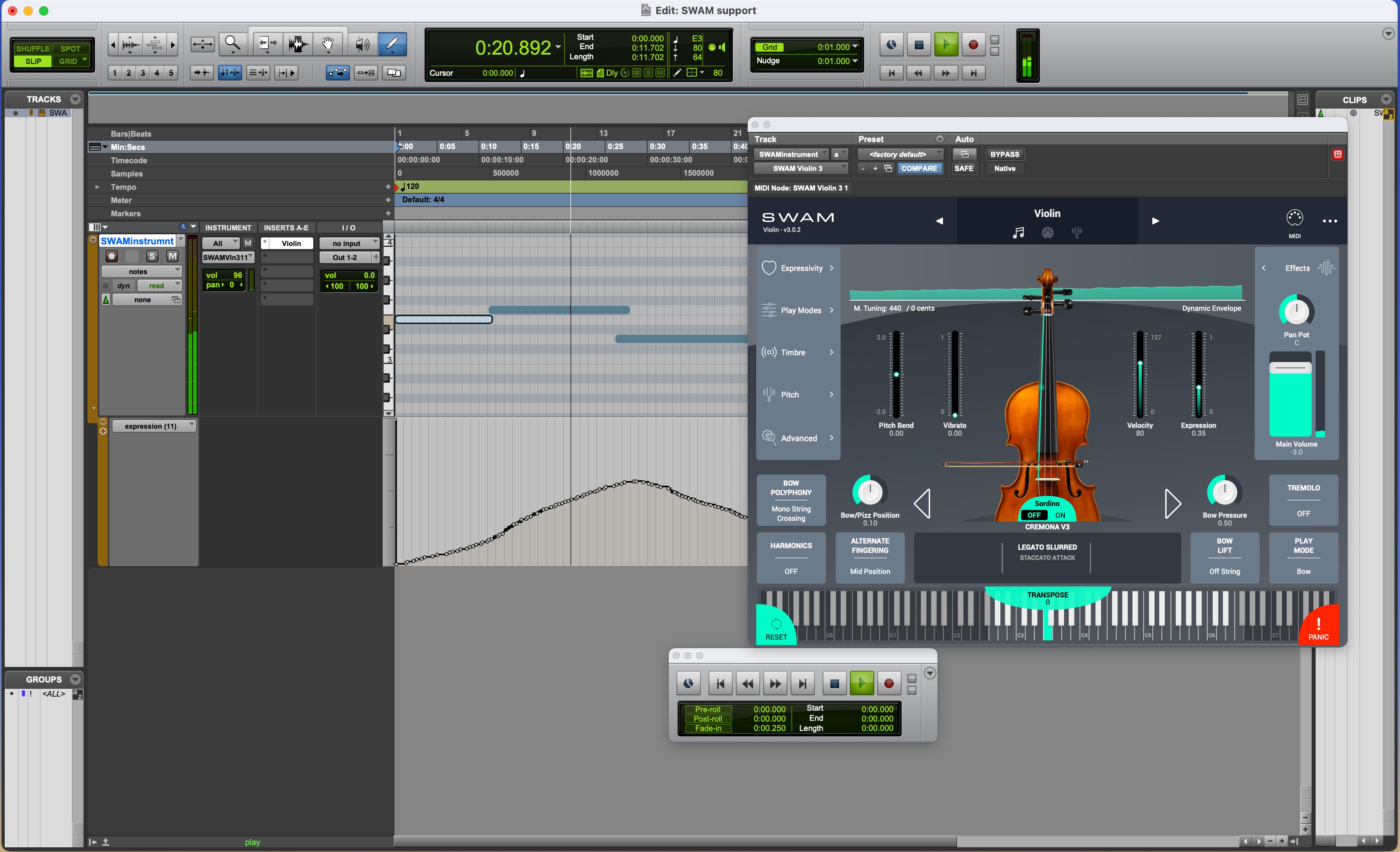
Picture 6 — Click on the Plug-In Automation button

Picture 7 — Select and add Expression to the parameters list
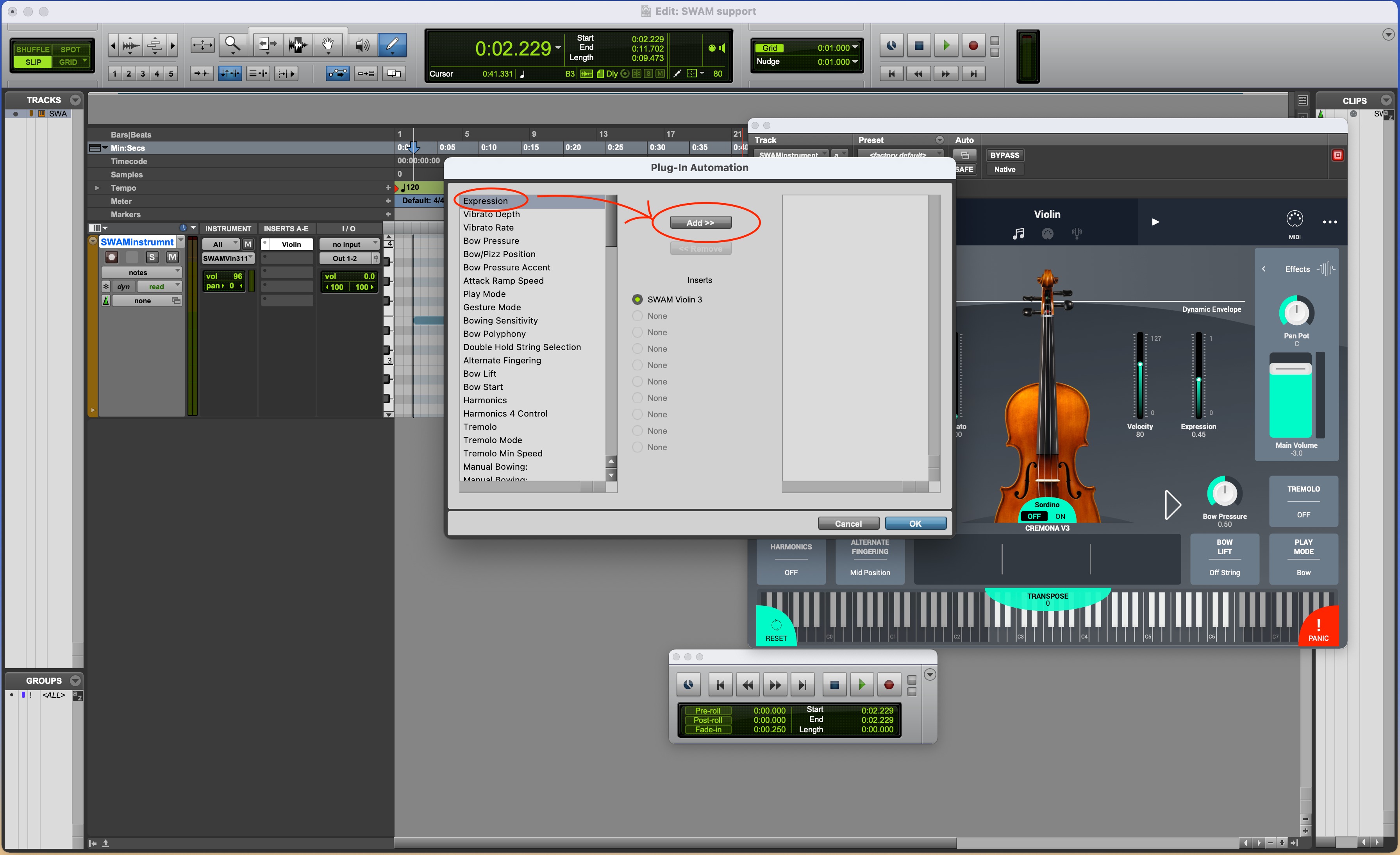
Picture 8 — Select Expression
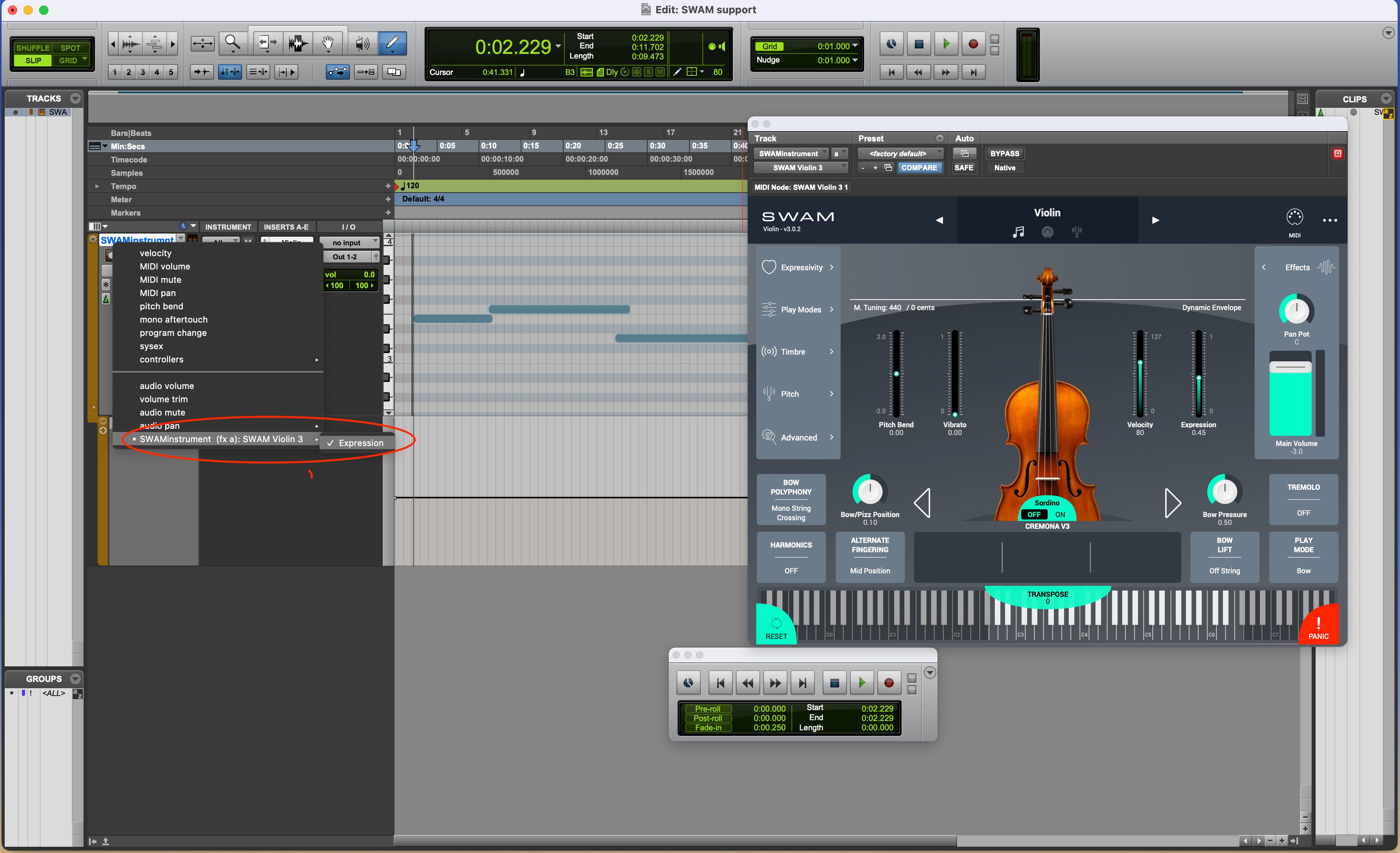
Picture 9 — Select Expression from the automation track dropdown
Was this article helpful?
That’s Great!
Thank you for your feedback
Sorry! We couldn't be helpful
Thank you for your feedback
Feedback sent
We appreciate your effort and will try to fix the article