Getting Started Guide
- Open MainStage 3 and check your MIDI controller connection in Mainstage > Preferences > MIDI
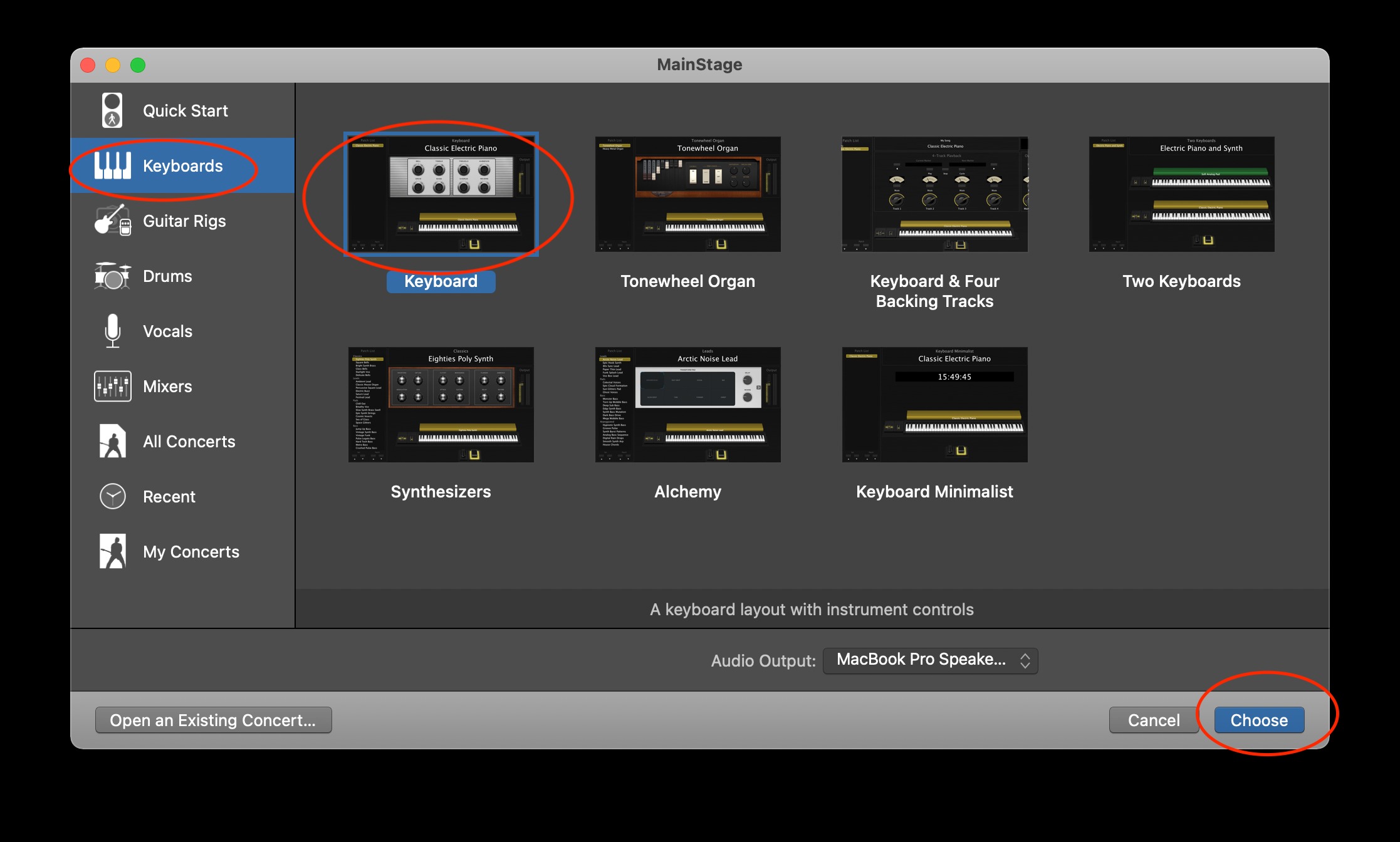
- Start a new project and choose a Keyboards project (e.g. Keyboard) from the wizard menu. (Picture 1)
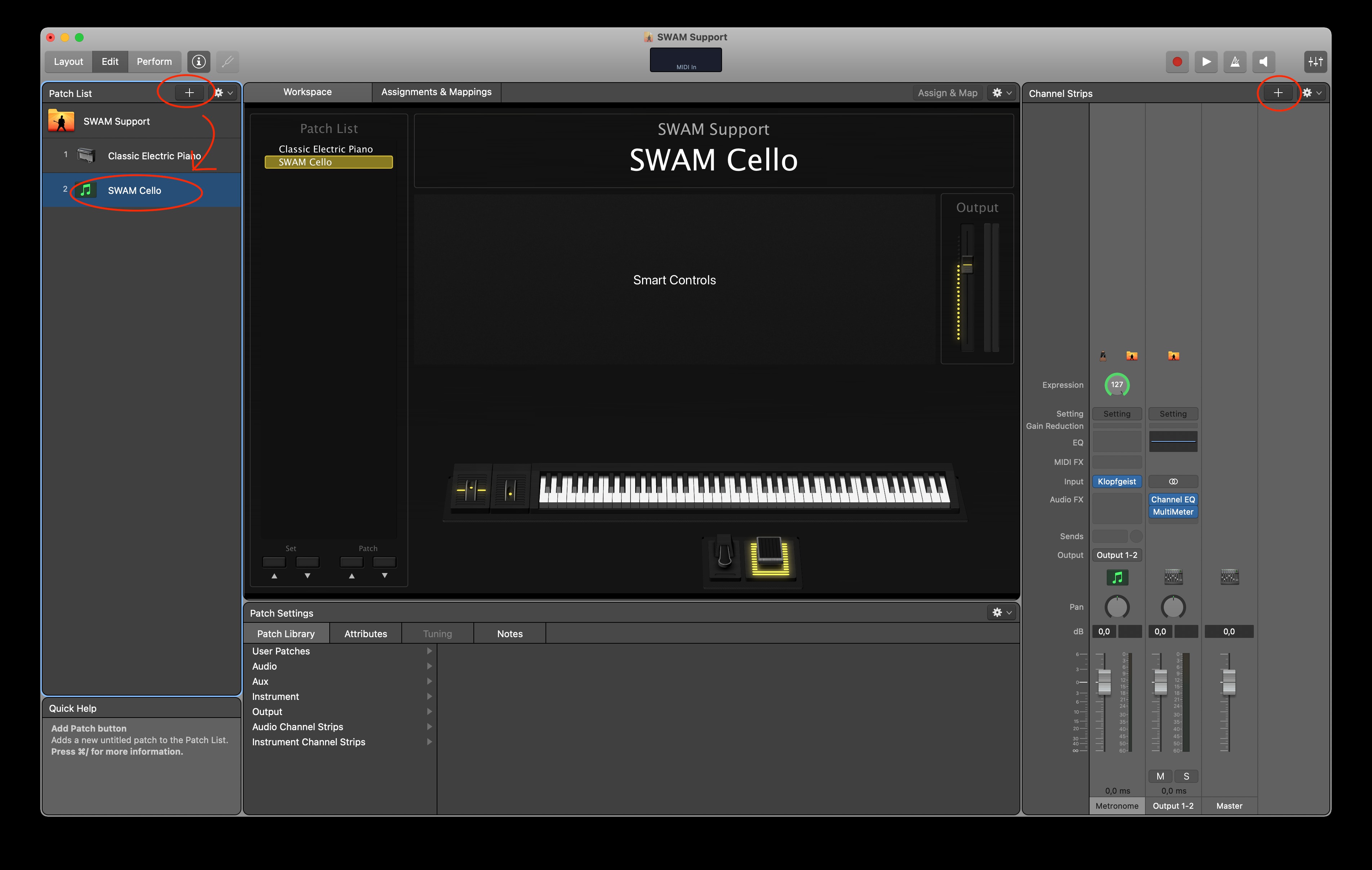
- In Edit Mode, add a new patch by clicking the '+' on the Patch List header (left side panel) and rename it. (Picture 2)
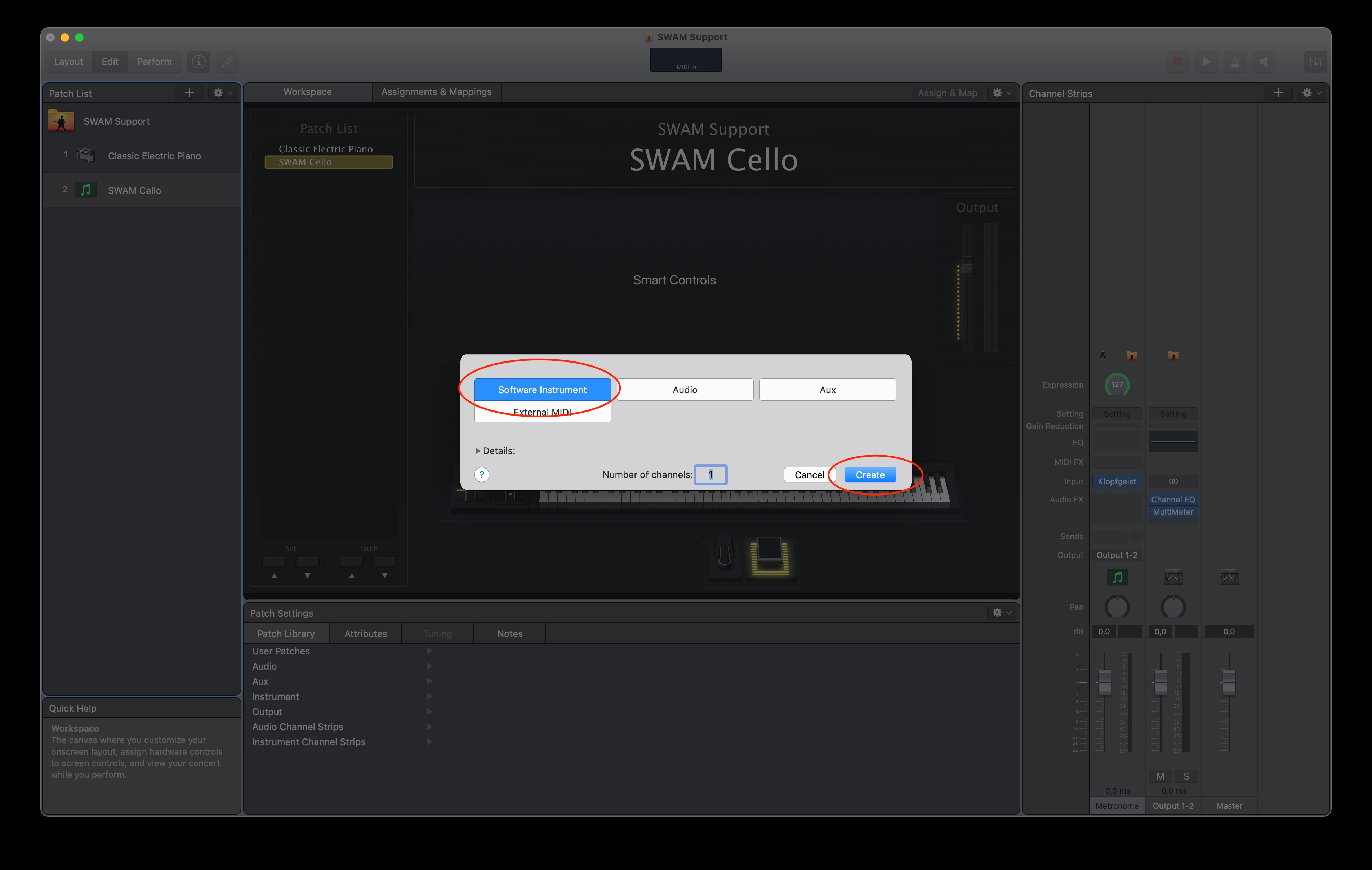
- Add a Software Instrument channel strip by clicking the '+' on the Channel Strips header (right side panel) (Picture 3)
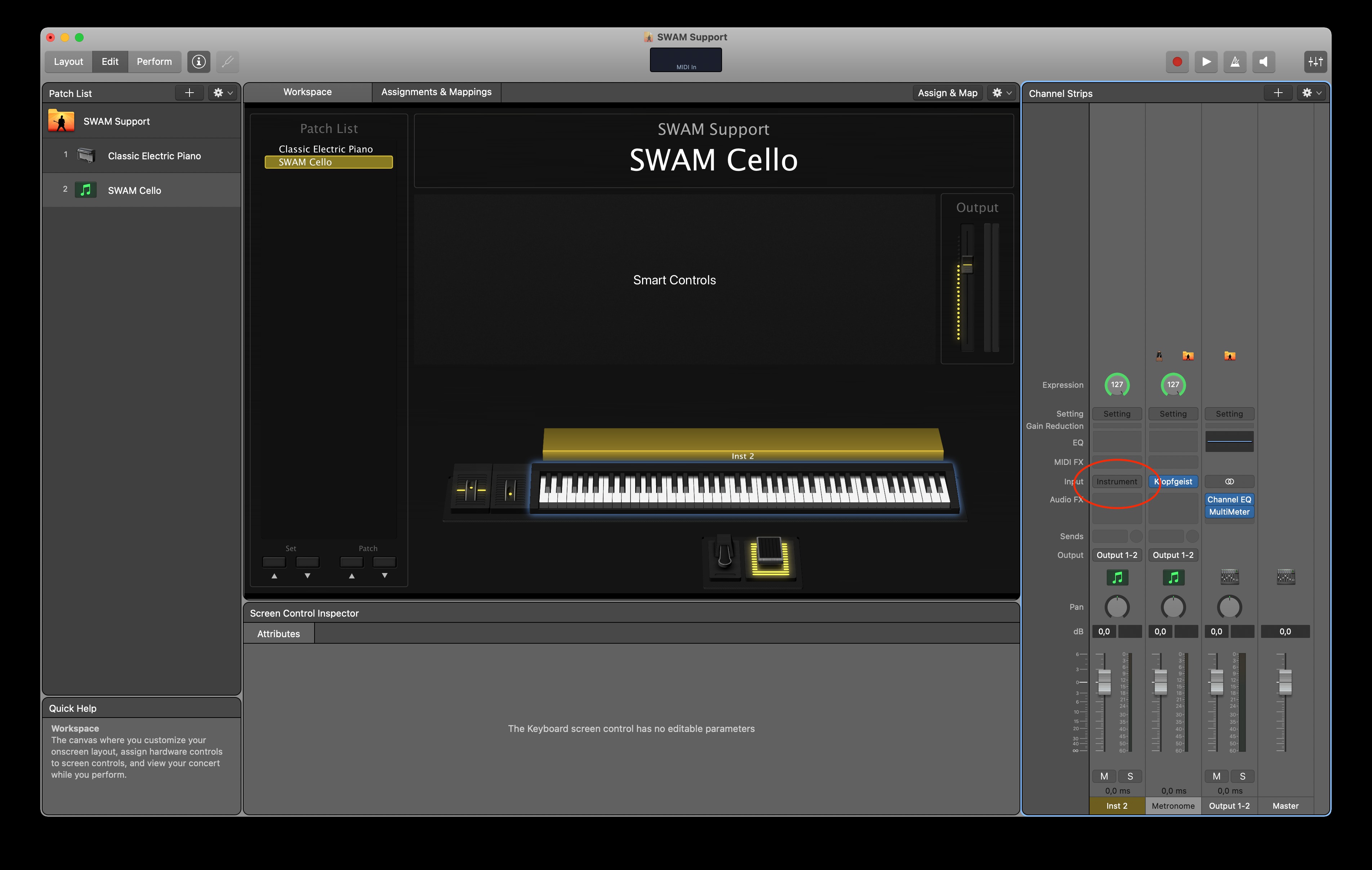
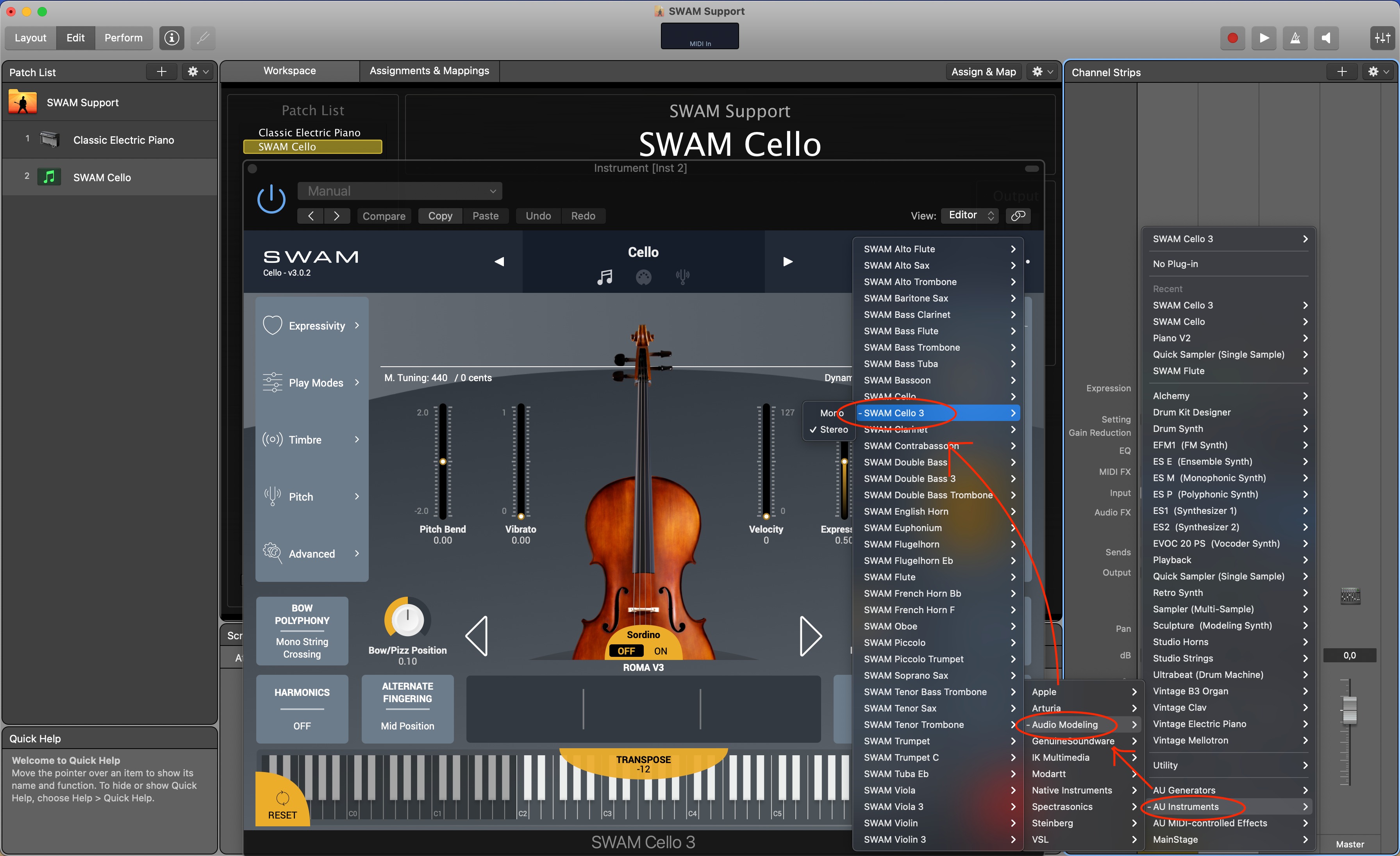
- Click on the created channel strip input button: a list of instruments appears. Open the sub-menu AU instruments > Audio Modeling > your favorite instrument > Stereo. (Picture 4 & 5)
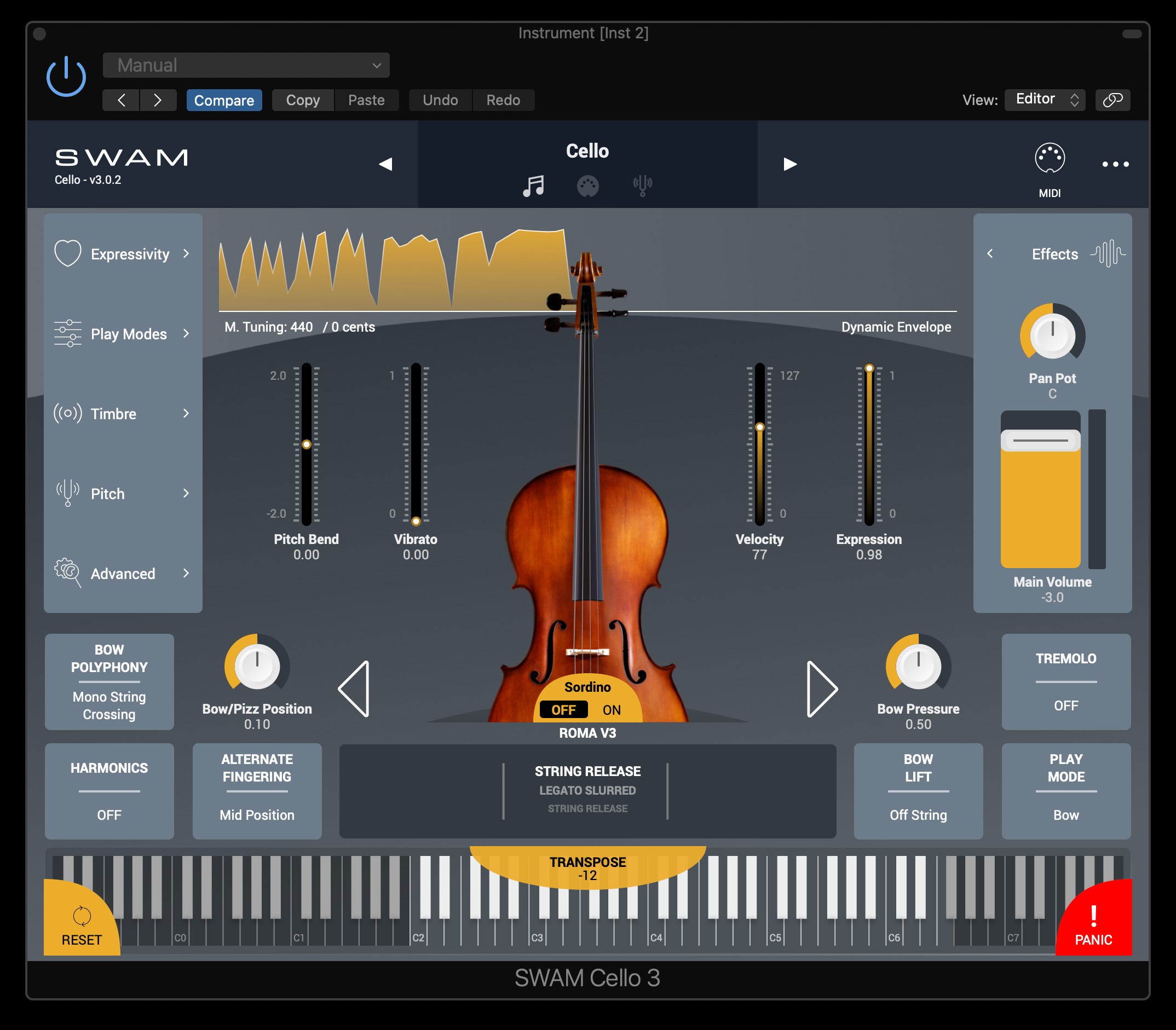
- The SWAM interface should open up automatically. Play it moving the expression controller (CC11). (Picture 6)
Picture 1 — Choosing a Keyboards project
Picture 2 — Adding a new patch
Picture 3 — Adding a software instrument channel strip
Picture 4 — After clicking on the channel strip input button, a list of instruments appears.
Picture 5 — Selecting your favorite SWAM instrument.
Picture 6 — Playing the SWAM instrument
Was this article helpful?
That’s Great!
Thank you for your feedback
Sorry! We couldn't be helpful
Thank you for your feedback
Feedback sent
We appreciate your effort and will try to fix the article